
Summary
Connects Claude directly to your Outlook mailbox through Microsoft Graph API with 22 consolidated tools covering email, calendar, contacts, and settings. You get full email operations including search with conversation threading, forensic header analysis for phishing investigation, and multi-format export (EML, MBOX, Markdown, JSON). Send controls include dry-run preview, mail tips, and rate limiting. Inbox automation works through programmable rules, categories, and Focused Inbox management. Delta sync pulls only changed messages since your last poll. Works with both personal Outlook.com and Microsoft 365 accounts, though work accounts unlock shared mailboxes and meeting room search. Reach for this when you want your AI assistant handling email triage, calendar scheduling, and inbox organization without leaving the conversation.


Keep your Mac awake while Claude Code and 40+ AI agents run. Sleeps when they're idle.
One time payment $9 →

Integrate web data into your AI product. One API to scrape website & brand data.
Get API Key Now →
Agent, run crypto. Access onchain data & trade routes via 1inch.
Install now →
On Capafy, your Skill runs online 24/7 as an agent product, and you get paid every time someone uses it.
Start earning →
Tools
Public tool metadata for what this MCP can expose to an agent.
51 tools
OUTLOOK_ADD_EVENT_ATTACHMENTAdds an attachment to a specific Outlook calendar event. Use when you need to attach a file or nested item to an existing event.6 params
Adds an attachment to a specific Outlook calendar event. Use when you need to attach a file or nested item to an existing event.
Parameters* required
itemobjectThe nested item payload; required when '@odata.type' is itemAttachment.
namestringThe display name of the attachment.
user_idstringThe user's email address or 'me' for the authenticated user.default: me
event_idstringThe unique identifier of the calendar event to which the attachment will be added.
odata_typestringAttachment type: '#microsoft.graph.fileAttachment' requires 'contentBytes'; '#microsoft.graph.itemAttachment' requires 'item'.one of
#microsoft.graph.fileAttachment · #microsoft.graph.itemAttachmentcontentBytesstringBase64-encoded file contents; required when '@odata.type' is fileAttachment.
OUTLOOK_ADD_MAIL_ATTACHMENTTool to add an attachment to an email message. Use when you have a message ID and need to attach a small (<3 MB) file or reference.10 params
Tool to add an attachment to an email message. Use when you have a message ID and need to attach a small (<3 MB) file or reference.
Parameters* required
itemobjectEmbedded item (e.g., message, event) for itemAttachment; must include its own '@odata.type'.
namestringDisplay name of the attachment (e.g., file name).
user_idstringThe user's principal name or 'me' for the authenticated user.default: me
isInlinebooleanSet to true if the attachment should appear inline in the message body.
contentIdstringContent ID for inline attachments, used in HTML body references.
message_idstringUnique identifier of the email message to attach to.
odata_typestringThe OData type of the attachment. For file attachments, use '#microsoft.graph.fileAttachment'.
contentTypestringMIME type of the attachment (e.g., 'application/pdf').
contentBytesstringBase64-encoded content of the file attachment (max size 3 MB).
contentLocationstringURL location or path for reference attachments.
OUTLOOK_CALENDAR_CREATE_EVENTCreates a new Outlook calendar event, ensuring `start_datetime` is chronologically before `end_datetime`.13 params
Creates a new Outlook calendar event, ensuring `start_datetime` is chronologically before `end_datetime`.
Parameters* required
bodystringThe body of the event. This can be in plain text or HTML format, as specified by the 'is_html' field.
is_htmlbooleanSpecifies whether the 'body' content is HTML. Set to true for HTML content; otherwise, it's treated as plain text.default: false
show_asstringThe status to show on the calendar for the duration of the event. Valid values are: 'free', 'tentative', 'busy', 'oof' (out of office), 'workingElsewhere', 'unknown'.default: busy
subjectstringThe subject of the calendar event.
user_idstringThe UPN (User Principal Name) or object ID of the user whose calendar the event will be created in. Use 'me' for the currently authenticated user.default: me
locationstringThe physical location of the event.default:
time_zonestringThe time zone for the start and end times of the event. Uses Windows time zone names (e.g., 'Pacific Standard Time') or IANA time zone names (e.g., 'America/Los_Angeles'). UTC is also a valid input.
categoriesarrayA list of categories associated with the event. These categories must already exist in the user's mailbox.
end_datetimestringThe end date and time of the event in ISO 8601 format. Time zone is specified in 'time_zone'.
attendees_infoarrayA list of attendees for the event. Each attendee object requires an 'email'. 'name' and 'type' ('required', 'optional', 'resource') are optional.
start_datetimestringThe start date and time of the event in ISO 8601 format. Time zone is specified in 'time_zone'.
is_online_meetingbooleanSet to true to indicate that the event is an online meeting. This will automatically generate an online meeting link if 'online_meeting_provider' is set (e.g., a Microsoft Teams link).default: false
online_meeting_providerstringSpecifies the online meeting provider. Currently, only 'teamsForBusiness' is supported. If 'is_online_meeting' is true and this is set, a meeting link for the provider will be created.
OUTLOOK_CREATE_ATTACHMENT_UPLOAD_SESSIONTool to create an upload session for large (>3 MB) message attachments. Use when you need to upload attachments in chunks.3 params
Tool to create an upload session for large (>3 MB) message attachments. Use when you need to upload attachments in chunks.
Parameters* required
user_idstringUser ID or user principal name; use 'me' for the signed-in user.default: me
message_idstringThe unique identifier of the message to attach to.
attachmentItemobjectAttachmentItem object describing the attachment in the upload session.
OUTLOOK_CREATE_CALENDARTool to create a new calendar in the signed-in user's mailbox. Use when organizing events into a separate calendar.4 params
Tool to create a new calendar in the signed-in user's mailbox. Use when organizing events into a separate calendar.
Parameters* required
namestringThe display name of the new calendar.
colorstringThe theme color to assign to the calendar. Supported values: auto, lightBlue, lightGreen, lightOrange, lightGray, lightYellow, lightTeal, lightPink, lightBrown, lightPurple, lightRed.one of
auto · lightBlue · lightGreen · lightOrange · lightGray · lightYellowuser_idstringThe UPN (User Principal Name) or object ID of the user where the calendar will be created. Use 'me' for the signed-in user.default: me
hexColorstringAn optional hexadecimal color code for the calendar in the format '#RRGGBB'.
OUTLOOK_CREATE_CONTACTCreates a new contact in a Microsoft Outlook user's contacts folder.15 params
Creates a new contact in a Microsoft Outlook user's contacts folder.
Parameters* required
notesstringPersonal notes about the contact. These notes are stored as 'personalNotes' in the Outlook contact details.default:
surnamestringThe contact's surname (last name).default:
user_idstringIdentifier for the user whose contact list will be modified. Use 'me' for the authenticated user, or provide the user's principal name (e.g., 'user@example.com').default: me
birthdaystringThe contact's birthday in 'YYYY-MM-DD' format. The time component will be set to midnight UTC (e.g., '1990-01-01' becomes '1990-01-01T00:00:00Z' in the API request).default:
jobTitlestringThe contact's job title.default:
givenNamestringThe contact's given (first) name.default:
homePhonestringThe contact's home phone number. If provided, this will be stored in Outlook as a list containing this single number.default:
categoriesarrayA list of categories to assign to the contact.
departmentstringThe department the contact belongs to within their company.default:
companyNamestringThe name of the company the contact is associated with.default:
displayNamestringThe contact's display name, typically their full name.default:
mobilePhonestringThe contact's mobile phone number.default:
businessPhonesarrayA list of business phone numbers for the contact. Each number should be a string.
emailAddressesarrayA list of email addresses for the contact.
officeLocationstringThe contact's office location.default:
OUTLOOK_CREATE_CONTACT_FOLDERTool to create a new contact folder in the user's mailbox. Use when needing to organize contacts into custom folders.3 params
Tool to create a new contact folder in the user's mailbox. Use when needing to organize contacts into custom folders.
Parameters* required
user_idstringThe user's principal name or object ID. Use 'me' for the authenticated user.default: me
displayNamestringThe display name of the new contact folder.
parentFolderIdstringThe ID of the parent contact folder. If omitted, created under the default contacts folder.
OUTLOOK_CREATE_DRAFTCreates an Outlook email draft with subject, body, recipients, and an optional attachment. Supports creating drafts as part of existing conversation threads by specifying a conversationId; attachments require a name, mimetype, and content.8 params
Creates an Outlook email draft with subject, body, recipients, and an optional attachment. Supports creating drafts as part of existing conversation threads by specifying a conversationId; attachments require a name, mimetype, and content.
Parameters* required
bodystringContent of the email draft; use `is_html` to specify if HTML or plain text.
is_htmlbooleanSpecifies if the `body` is HTML. If `False`, `body` is plain text.default: false
subjectstringSubject line for the email draft.
attachmentstringOptional file to attach. If provided, must include the file's content, name, and mimetype.
cc_recipientsarrayOptional list of CC (carbon copy) recipient email addresses.
to_recipientsarrayList of primary 'To' recipient email addresses.
bcc_recipientsarrayOptional list of BCC (blind carbon copy) recipient email addresses.
conversation_idstringOptional conversation ID to create the draft as part of an existing email conversation thread. If provided, the draft will be part of the specified conversation instead of starting a new one.
OUTLOOK_CREATE_DRAFT_REPLYCreates a draft reply in the specified user's Outlook mailbox to an existing message (identified by a valid `message_id`), optionally including a `comment` and CC/BCC recipients.5 params
Creates a draft reply in the specified user's Outlook mailbox to an existing message (identified by a valid `message_id`), optionally including a `comment` and CC/BCC recipients.
Parameters* required
commentstringPlain text comment to include in the body of the reply draft.
user_idstringUser's mailbox identifier (email or 'me') for the original message and new draft location.default: me
cc_emailsarrayList of email addresses to add as CC recipients to the draft reply.
bcc_emailsarrayList of email addresses to add as BCC recipients to the draft reply.
message_idstringUnique ID of the message to reply to, typically obtained from actions like 'List Messages' or 'Get Message'.
OUTLOOK_CREATE_EMAIL_RULECreate email rule filter with conditions and actions5 params
Create email rule filter with conditions and actions
Parameters* required
actionsobjectActions to take when the rule conditions are met.
sequenceintegerOrder in which the rule is executed (lower numbers execute first).default: 1
isEnabledbooleanWhether the rule is enabled.default: true
conditionsobjectConditions that must be met for the rule to apply.
displayNamestringDisplay name for the email rule.
OUTLOOK_CREATE_MAIL_FOLDERTool to create a new mail folder. Use when you need to organize email into a new folder.3 params
Tool to create a new mail folder. Use when you need to organize email into a new folder.
Parameters* required
user_idstringIdentifier for the user whose mailbox the folder will be created in. Use 'me' for the authenticated user or provide the user's principal name or ID.default: me
isHiddenbooleanIndicates whether the new folder is hidden. Default is false. Once set, this property cannot be updated.default: false
displayNamestringThe display name of the new mail folder.
OUTLOOK_CREATE_MASTER_CATEGORYTool to create a new category in the user's master category list. Use after selecting a unique display name.2 params
Tool to create a new category in the user's master category list. Use after selecting a unique display name.
Parameters* required
colorstringA pre-set color constant for the category. Allowed values: preset0 through preset24.one of
preset0 · preset1 · preset2 · preset3 · preset4 · preset5displayNamestringUnique name that identifies the category in the user's mailbox.
OUTLOOK_DELETE_CONTACTPermanently deletes an existing contact, using its `contact_id` (obtainable via 'List User Contacts' or 'Get Contact'), from the Outlook contacts of the user specified by `user_id`.2 params
Permanently deletes an existing contact, using its `contact_id` (obtainable via 'List User Contacts' or 'Get Contact'), from the Outlook contacts of the user specified by `user_id`.
Parameters* required
user_idstringThe UPN (User Principal Name) or ID of the user; use 'me' for the signed-in user.default: me
contact_idstringIdentifier of the contact to be deleted, typically obtained from 'List User Contacts' or 'Get Contact'.
OUTLOOK_DELETE_EMAIL_RULEDelete an email rule1 params
Delete an email rule
Parameters* required
ruleIdstringID of the email rule to delete.
OUTLOOK_DELETE_EVENTDeletes an existing calendar event, identified by its unique `event_id`, from a specified user's Microsoft Outlook calendar, with an option to send cancellation notifications to attendees.3 params
Deletes an existing calendar event, identified by its unique `event_id`, from a specified user's Microsoft Outlook calendar, with an option to send cancellation notifications to attendees.
Parameters* required
user_idstringUser's email address or 'me' for the current user.default: me
event_idstringUnique identifier of the calendar event to delete, typically obtained from event listing or retrieval actions.
send_notificationsbooleanIf `True`, sends cancellation notifications to event attendees upon deletion.default: true
OUTLOOK_DELETE_MAIL_FOLDERDelete a mail folder from the user's mailbox. Use when you need to remove an existing mail folder.2 params
Delete a mail folder from the user's mailbox. Use when you need to remove an existing mail folder.
Parameters* required
user_idstringIdentifier for the user whose mailbox contains the folder to delete. Use 'me' for the authenticated user or provide the user's principal name or ID.default: me
folder_idstringThe unique identifier or well-known name of the mail folder to delete (e.g., folder ID or 'Drafts', 'SentItems').
OUTLOOK_DOWNLOAD_OUTLOOK_ATTACHMENTDownloads a specific file attachment from an email message in a Microsoft Outlook mailbox; the attachment must contain 'contentBytes' (binary data) and not be a link or embedded item.4 params
Downloads a specific file attachment from an email message in a Microsoft Outlook mailbox; the attachment must contain 'contentBytes' (binary data) and not be a link or embedded item.
Parameters* required
user_idstringThe user's UPN (User Principal Name) or 'me' for the authenticated user. This identifies the mailbox where the message is located.default: me
file_namestringThe desired filename for the downloaded attachment. This name will be assigned to the `FileDownloadable` object.
message_idstringThe unique identifier of the email message that contains the attachment to be downloaded. This ID is typically obtained when listing or retrieving messages.
attachment_idstringThe unique identifier of the attachment to be downloaded. This ID is typically obtained from the message's details when an email message object is retrieved.
OUTLOOK_GET_CALENDAR_VIEWGet events ACTIVE during a time window (includes multi-day events). Use for "what's on my calendar today/this week" or availability checks. Returns events overlapping the time range. For keyword search or filters by category, use OUTLOOK_LIST_EVENTS instead.7 params
Get events ACTIVE during a time window (includes multi-day events). Use for "what's on my calendar today/this week" or availability checks. Returns events overlapping the time range. For keyword search or filters by category, use OUTLOOK_LIST_EVENTS instead.
Parameters* required
topintegerMaximum number of events to retrieve. Default is 100.default: 100
selectarrayList of specific event properties to return (e.g., ['subject', 'start', 'end']). If omitted, returns default properties.
user_idstringEmail address of the target user (or 'me' for authenticated user).default: me
timezonestringIANA or Windows timezone for event times (e.g., 'America/New_York'). Defaults to UTC.default: UTC
calendar_idstringOptional ID of a specific calendar to query. If not provided, uses the primary calendar. Get calendar IDs using LIST_CALENDARS action.
end_datetimestringEnd of the time window in ISO 8601 format (YYYY-MM-DDTHH:MM:SSZ). Events active during this window will be returned.
start_datetimestringStart of the time window in ISO 8601 format (YYYY-MM-DDTHH:MM:SSZ). Events active during this window will be returned.
OUTLOOK_GET_CONTACTRetrieves a specific Outlook contact by its `contact_id` from the contacts of a specified `user_id` (defaults to 'me' for the authenticated user).2 params
Retrieves a specific Outlook contact by its `contact_id` from the contacts of a specified `user_id` (defaults to 'me' for the authenticated user).
Parameters* required
user_idstringUser's principal name (e.g., 'AdeleV@contoso.onmicrosoft.com') or 'me' for the authenticated user. Using 'me' is recommended for accessing one's own contacts.default: me
contact_idstringUnique identifier for the contact within the specified user's Outlook address book.
OUTLOOK_GET_CONTACT_FOLDERSTool to retrieve a list of contact folders in the signed-in user's mailbox. Use after authentication when you need to browse or select among contact folders.7 params
Tool to retrieve a list of contact folders in the signed-in user's mailbox. Use after authentication when you need to browse or select among contact folders.
Parameters* required
topintegerMaximum number of contact folders to return.
skipintegerNumber of contact folders to skip for pagination.
expandarrayRelated entities to expand inline, e.g., ['contacts'].
filterstringOData filter expression, e.g., startswith(displayName,'A').
selectarrayList of properties to include in the response, e.g., ['id','displayName'].
orderbyarrayList of properties to order results by, e.g., ['displayName asc'].
user_idstringUser principal name or ID. Use 'me' for the authenticated user.default: me
OUTLOOK_GET_EVENTRetrieves the full details of a specific calendar event by its ID from a user's Outlook calendar, provided the event exists.2 params
Retrieves the full details of a specific calendar event by its ID from a user's Outlook calendar, provided the event exists.
Parameters* required
user_idstringThe user's primary SMTP address, user principal name (UPN), or the alias 'me' (for the signed-in user) to identify the calendar owner.default: me
event_idstringThe unique identifier of the calendar event to retrieve.
OUTLOOK_GET_MAILBOX_SETTINGSTool to retrieve mailbox settings. Use when you need to view settings such as automatic replies, time zone, and working hours for the signed-in or specified user.3 params
Tool to retrieve mailbox settings. Use when you need to view settings such as automatic replies, time zone, and working hours for the signed-in or specified user.
Parameters* required
expandarrayOData $expand query to include related entities.
selectarrayOData $select query to specify mailbox settings properties to include.
user_idstringThe user's unique identifier or principal name. Use 'me' for the signed-in user.default: me
OUTLOOK_GET_MAIL_DELTARetrieve incremental changes (delta) of messages in a mailbox. FIRST RUN: Returns ALL messages in folder (use top=50 to limit). Response has @odata.deltaLink. SUBSEQUENT: Pass stored deltaLink to get only NEW/UPDATED/DELETED messages since last sync. Properties available: id,...7 params
Retrieve incremental changes (delta) of messages in a mailbox. FIRST RUN: Returns ALL messages in folder (use top=50 to limit). Response has @odata.deltaLink. SUBSEQUENT: Pass stored deltaLink to get only NEW/UPDATED/DELETED messages since last sync. Properties available: id,...
Parameters* required
topintegerMaximum number of items to return per page. For first run without delta_token, use top=50 or top=100 to limit results. First delta call without token returns all messages in folder. Paginate through results using @odata.nextLink, then store @odata.deltaLink for next sync.
expandarrayList of related entities to expand (e.g. ['attachments']).
selectarrayList of message properties to include (e.g. ['subject','receivedDateTime']). Delta sync has property limitations due to response size constraints. Not available in delta: internetMessageHeaders, body (full), attachments (full content). Available: id, subject, from, toRecipients, ccRecipients, bccRecipients, receivedDateTime, sentDateTime, isRead, isDraft, importance, hasAttachments, categories, conversationId, flag, webLink, bodyPreview (first 255 chars).
user_idstringUser identifier: 'me' for the signed-in user or the user's email/UPN.default: me
folder_idstringMail folder identifier to scope the delta query to that folder (e.g., 'Inbox' or folder ID GUID). Defaults to Inbox when omitted.
skip_tokenstringSkip token for paging through large result sets during initial sync. Automatically provided in response '@odata.nextLink' when there are more results. Extract from nextLink URL and pass here for next page. Keep paginating until you receive '@odata.deltaLink' instead of nextLink.
delta_tokenstringDelta token from a previous call to get only changes since that state. If delta_token is not provided, the API returns all messages in the folder (initial sync). Use top parameter (e.g., top=50) on first run to limit results. Response includes @odata.deltaLink - extract and store this for next call to get only new changes. Subsequent calls with deltaLink return only: new messages, updated messages, deleted message IDs.
OUTLOOK_GET_MAIL_TIPSTool to retrieve mail tips such as automatic replies and mailbox full status. Use when you need to check recipient status before sending mail.3 params
Tool to retrieve mail tips such as automatic replies and mailbox full status. Use when you need to check recipient status before sending mail.
Parameters* required
user_idstringUser principal name (UPN) or 'me' for the signed-in user.default: me
EmailAddressesarrayCollection of SMTP addresses of recipients to get MailTips for.
MailTipsOptionsarrayList of mail tip types to retrieve for each recipient.
OUTLOOK_GET_MASTER_CATEGORIESTool to retrieve the user's master category list. Use when you need to get all categories defined for the user.6 params
Tool to retrieve the user's master category list. Use when you need to get all categories defined for the user.
Parameters* required
topintegerMaximum number of master categories to return (OData $top).
skipintegerNumber of master categories to skip for pagination (OData $skip).
filterstringOData $filter query to filter master categories.
selectarrayOData $select query to specify properties to include.
orderbyarrayOData $orderby query to order master categories by property values.
user_idstringThe user's unique identifier or principal name. Use 'me' for the signed-in user.default: me
OUTLOOK_GET_MESSAGERetrieves a specific email message by its ID from the specified user's Outlook mailbox. Use the 'select' parameter to include specific fields like 'internetMessageHeaders' for filtering automated emails.3 params
Retrieves a specific email message by its ID from the specified user's Outlook mailbox. Use the 'select' parameter to include specific fields like 'internetMessageHeaders' for filtering automated emails.
Parameters* required
selectarrayList of message properties to include in the response. Each item is a property name. MUST be provided as a list. Reduces data transfer and improves performance. Common fields: id, subject, from, toRecipients, ccRecipients, receivedDateTime, sentDateTime, body, bodyPreview, hasAttachments, webLink, internetMessageHeaders, isRead, importance, categories. Leave empty to return all fields.
user_idstringUser's email address, UPN, or 'me' for the currently authenticated user.default: me
message_idstringUnique ID of the Outlook email message to retrieve.
OUTLOOK_GET_PROFILERetrieves the Microsoft Outlook profile for a specified user.1 params
Retrieves the Microsoft Outlook profile for a specified user.
Parameters* required
user_idstringThe user's unique identifier or principal name. Use 'me' to get the profile of the authenticated user.default: me
OUTLOOK_GET_SCHEDULERetrieves free/busy schedule information for specified email addresses within a defined time window.4 params
Retrieves free/busy schedule information for specified email addresses within a defined time window.
Parameters* required
EndTimeobjectThe end date, time, and time zone for the period for which to retrieve schedules. The period can be up to 62 days.
SchedulesarrayA list of SMTP email addresses for users, distribution lists, or resources whose schedules are to be retrieved. Maximum of 20 addresses.
StartTimeobjectThe start date, time, and time zone for the period for which to retrieve schedules.
availabilityViewIntervalstringThe duration of each time slot in the availability view, specified in minutes. Minimum: 5, Maximum: 1440. Default: 30.default: 30
OUTLOOK_GET_SUPPORTED_LANGUAGESTool to retrieve supported languages in the user's mailbox. Use when you need to display or select from available mailbox languages.1 params
Tool to retrieve supported languages in the user's mailbox. Use when you need to display or select from available mailbox languages.
Parameters* required
user_idstringThe user's unique identifier or principal name. Use 'me' for the signed-in user.default: me
OUTLOOK_GET_SUPPORTED_TIME_ZONESTool to retrieve supported time zones in the user's mailbox. Use when you need a list of time zones to display or choose from for event scheduling.1 params
Tool to retrieve supported time zones in the user's mailbox. Use when you need a list of time zones to display or choose from for event scheduling.
Parameters* required
timeZoneStandardstringSpecifies the time zone format to return. Supported values: 'Windows' or 'Iana'. Default is 'Windows' if not specified.one of
Windows · IanaOUTLOOK_LIST_CALENDARSTool to list calendars in the signed-in user's mailbox. Use when you need to retrieve calendars with optional OData queries.6 params
Tool to list calendars in the signed-in user's mailbox. Use when you need to retrieve calendars with optional OData queries.
Parameters* required
topintegerMaximum number of calendars to return (OData $top).
skipintegerNumber of calendars to skip (OData $skip).
filterstringOData filter expression (OData $filter).
selectarrayProperties to include (OData $select).
orderbyarrayOrder by expressions (OData $orderby).
user_idstringUser ID or userPrincipalName. Use 'me' for the signed-in user.default: me
OUTLOOK_LIST_CONTACTSRetrieves a user's Microsoft Outlook contacts, from the default or a specified contact folder.6 params
Retrieves a user's Microsoft Outlook contacts, from the default or a specified contact folder.
Parameters* required
topintegerMaximum number of contacts to retrieve.default: 10
filterstringOData V4 filter expression for targeted retrieval.
selectarrayList of specific contact properties to retrieve. Each item is a property name. MUST be provided as a list. If empty, a default set of properties is returned.
orderbyarrayList of properties to sort results by. Each item is a string like 'displayName asc' or 'createdDateTime desc'. MUST be provided as a list, even for single sort criteria. 'asc' is default.
user_idstringUser Principal Name (UPN) or ID of the user. 'me' refers to the authenticated user.default: me
contact_folder_idstringID of a specific contact folder. If omitted, contacts are retrieved from the default contact folder.
OUTLOOK_LIST_EMAIL_RULESList all email rules from inbox1 params
List all email rules from inbox
Parameters* required
topintegerNumber of rules to retrieve. Default is 100.
OUTLOOK_LIST_EVENT_ATTACHMENTSTool to list attachments for a specific Outlook calendar event. Use when you have an event ID and need to view its attachments.7 params
Tool to list attachments for a specific Outlook calendar event. Use when you have an event ID and need to view its attachments.
Parameters* required
topintegerMaximum number of attachments to return (OData $top).
skipintegerNumber of attachments to skip (OData $skip).
filterstringOData filter string to filter the attachments (OData $filter).
selectarrayList of attachment properties to include (OData $select).
orderbyarrayOrder by clauses to sort the results (OData $orderby).
user_idstringThe user's primary SMTP address, UPN, or 'me' for the signed-in user.default: me
event_idstringThe unique identifier of the calendar event to retrieve attachments for.
OUTLOOK_LIST_EVENTSRetrieves events from a user's Outlook calendar via Microsoft Graph API. Supports primary/secondary/shared calendars, pagination, filtering, property selection, sorting, and timezone specification. Use calendar_id to access non-primary calendars.9 params
Retrieves events from a user's Outlook calendar via Microsoft Graph API. Supports primary/secondary/shared calendars, pagination, filtering, property selection, sorting, and timezone specification. Use calendar_id to access non-primary calendars.
Parameters* required
topintegerMaximum number of events to retrieve per page for pagination.default: 10
skipintegerNumber of initial events to bypass, used for pagination.default: 0
filterstringOData query string to filter events (e.g., "start/dateTime ge 'YYYY-MM-DDTHH:MM:SSZ'"); string literals use single quotes.default:
selectarrayList of specific event property names to return. Each item is a property name like 'subject' or 'start'. MUST be provided as a list. If omitted, a default set of properties is returned.
orderbyarrayList of properties to sort results by. Each item is a string like 'start/dateTime desc' or 'subject asc'. MUST be provided as a list, even for single sort criteria. Use 'asc' (default) or 'desc' for order.
user_idstringEmail address of the target user (or 'me' for authenticated user), identifying the calendar for event listing.default: me
timezonestringPreferred IANA or Windows timezone for event start/end times (e.g., 'America/New_York'); defaults to UTC if unspecified/invalid.default: UTC
calendar_idstringOptional ID of a specific calendar to retrieve events from.If not provided, uses the primary calendar. Get calendar IDs using LIST_CALENDARS action. Useful for accessing secondary calendars, shared calendars, or team calendars.
expand_recurring_eventsbooleanWhen true, automatically expands recurring events to show actual occurrences within the filtered date range instead of series masters. When false (default), returns series masters as before.default: false
OUTLOOK_LIST_MAIL_FOLDERSTool to list a user's top-level mail folders. Use when you need folders like Inbox, Drafts, Sent Items; set include_hidden_folders=True to include hidden folders.2 params
Tool to list a user's top-level mail folders. Use when you need folders like Inbox, Drafts, Sent Items; set include_hidden_folders=True to include hidden folders.
Parameters* required
user_idstringUser's id, userPrincipalName, or 'me' for the signed-in user.default: me
include_hidden_foldersbooleanInclude hidden mail folders (isHidden=true) when set to true.default: false
OUTLOOK_LIST_MESSAGESRetrieves a list of email messages from a specified mail folder in an Outlook mailbox, with options for filtering (including by conversationId to get all messages in a thread), pagination, and sorting; ensure 'user_id' and 'folder' are valid, and all date/time strings are in I...22 params
Retrieves a list of email messages from a specified mail folder in an Outlook mailbox, with options for filtering (including by conversationId to get all messages in a thread), pagination, and sorting; ensure 'user_id' and 'folder' are valid, and all date/time strings are in I...
Parameters* required
topintegerMaximum number of messages to return per request (1-1000). Always check response['@odata.nextLink'] for pagination. If present, make additional requests with that URL (includes $skiptoken). Repeat until '@odata.nextLink' is absent. For large mailboxes (1000+ messages), always paginate.default: 10
skipintegerNumber of messages to skip from the beginning of the result set, for pagination.default: 0
folderstringID or well-known name of the mail folder. Well-known names: inbox, sentitems, drafts, deleteditems, outbox, junkemail. Or use a valid folder ID.default: inbox
selectarrayList of message properties to include. Valid properties: id, subject, from, toRecipients, ccRecipients, bccRecipients, receivedDateTime, sentDateTime, hasAttachments, importance, isRead, body, bodyPreview, categories, conversationId, conversationIndex, flag, internetMessageHeaders, parentFolderId, replyTo, sender, webLink, isDraft, isReadReceiptRequested, isDeliveryReceiptRequested, changeKey, createdDateTime, lastModifiedDateTime, inferenceClassification, size, internetMessageId. Note: attachments is not selectable.
is_readbooleanFilter by read status: 'true' for read, 'false' for unread. Unspecified means no filter by read status.
orderbyarrayList of properties to sort results by, with direction. Each item is a string like 'receivedDateTime desc' or 'subject asc'. Default is 'receivedDateTime desc'. Cannot be used with sentDateTime filters in Sent folder.
subjectstringFilter by exact match of the subject line. Special characters like apostrophes, brackets will be automatically escaped. For complex subject searches, consider using 'Search Messages' instead.
user_idstringTarget user's email or 'me' for authenticated user. For delegated access, use shared mailbox or delegated user's email.default: me
categoriesarrayFilter by categories (case-sensitive); matches if tagged with any specified category.
importancestringFilter by importance: 'low', 'normal', or 'high'.
from_addressstringFilter by the sender's exact email address. NOTE: This filter is applied client-side on the returned results, not server-side.
conversationIdstringFilter messages by conversation ID to retrieve all messages in a specific email thread.
has_attachmentsbooleanFilter by attachment presence: 'true' for messages with attachments, 'false' for those without. NOTE: This filter is applied client-side on the returned results.
subject_containsstringFilter messages where the subject contains the specified case-insensitive substring. NOTE: This filter is applied client-side on the returned results. For better performance, use 'Search Messages' instead.
subject_endswithstringFilter messages where the subject ends with the specified case-insensitive string. NOTE: This filter is applied client-side on the returned results. For better performance, use 'Search Messages' instead.
sent_date_time_gtstringFilter messages sent after this ISO 8601 timestamp.
sent_date_time_ltstringFilter messages sent before this ISO 8601 timestamp.
subject_startswithstringFilter messages where the subject starts with the specified case-insensitive string.
received_date_time_gestringFilter messages received on or after this ISO 8601 timestamp.
received_date_time_gtstringFilter messages received after this ISO 8601 timestamp (e.g., '2023-01-01T00:00:00Z').
received_date_time_lestringFilter messages received on or before this ISO 8601 timestamp.
received_date_time_ltstringFilter messages received before this ISO 8601 timestamp.
OUTLOOK_LIST_OUTLOOK_ATTACHMENTSLists metadata (like name, size, and type, but not `contentBytes`) for all attachments of a specified Outlook email message.2 params
Lists metadata (like name, size, and type, but not `contentBytes`) for all attachments of a specified Outlook email message.
Parameters* required
user_idstringThe unique identifier of the user. Use the user's UPN (e.g., 'AdeleV@contoso.onmicrosoft.com') or 'me' for the currently authenticated user. This specifies the mailbox to query.default: me
message_idstringThe unique identifier of the email message from which to retrieve attachments. This ID is specific to the Outlook message.
OUTLOOK_LIST_REMINDERSTool to retrieve reminders for events occurring within a specified time range. Use when you need to see upcoming reminders between two datetimes.3 params
Tool to retrieve reminders for events occurring within a specified time range. Use when you need to see upcoming reminders between two datetimes.
Parameters* required
userIdstringUser Principal Name or ID. Use 'me' to indicate the signed-in user.default: me
endDateTimestringThe end date and time in ISO 8601 format defining the window for reminders. Example: '2023-10-26T20:00:00.0000000'.
startDateTimestringThe start date and time in ISO 8601 format defining the window for reminders. Example: '2023-10-26T19:00:00.0000000'.
OUTLOOK_LIST_USERSTool to list users in Microsoft Entra ID. Use when you need to retrieve a paginated list of users, optionally filtering or selecting specific properties.4 params
Tool to list users in Microsoft Entra ID. Use when you need to retrieve a paginated list of users, optionally filtering or selecting specific properties.
Parameters* required
topintegerMaximum number of users to return (OData $top). Default page size is 100, maximum is 999.
skipintegerNumber of users to skip (OData $skip) for pagination.
filterstringOData filter expression to restrict returned users (OData $filter).
selectarrayList of user properties to include in the response (OData $select).
OUTLOOK_MOVE_MESSAGEMove a message to another folder within the specified user's mailbox. This creates a new copy of the message in the destination folder and removes the original message.3 params
Move a message to another folder within the specified user's mailbox. This creates a new copy of the message in the destination folder and removes the original message.
Parameters* required
user_idstringUser's email address, UPN, or 'me' for the currently authenticated user.default: me
message_idstringUnique ID of the Outlook email message to move.
destination_idstringThe destination folder ID, or a well-known folder name (e.g., 'inbox', 'deleteditems', 'drafts', 'sentitems').
OUTLOOK_QUERY_EMAILSPrimary tool for querying Outlook emails with custom OData filters. Build precise server-side filters for dates, read status, importance, subjects, attachments, and conversations. Best for structured queries on message metadata. Returns up to 100 messages per request with pagi...7 params
Primary tool for querying Outlook emails with custom OData filters. Build precise server-side filters for dates, read status, importance, subjects, attachments, and conversations. Best for structured queries on message metadata. Returns up to 100 messages per request with pagi...
Parameters* required
topintegerMaximum number of messages to return per request (1-1000). Default is 100. IMPORTANT: For large mailboxes, always check response['@odata.nextLink'] to fetch remaining messages. Pagination example: 1) Call with top=100, 2) Check if '@odata.nextLink' exists in response, 3) If present, make a new request to that full URL (includes $skiptoken), 4) Repeat until '@odata.nextLink' is absent.default: 100
skipintegerNumber of messages to skip for pagination. NOTE: For large result sets, prefer using '@odata.nextLink' from responses instead of manual skip.default: 0
filterstringOData $filter query string to filter email messages. Syntax: 'field operator value' combined with 'and', 'or', 'not'.
**Operators:** eq, ne, lt, le, gt, ge, startswith(), endswith(), contains() (limited support), any()
**Common Fields (Server-Side Filterable):**
- `isRead` - Boolean: true/false
- `importance` - String: 'low', 'normal', 'high'
- `subject` - String (exact match or startswith)
- `hasAttachments` - Boolean: true/false
- `receivedDateTime`, `sentDateTime` - DateTime (ISO 8601: '2025-10-01T00:00:00Z')
- `conversationId` - String (exact match)
- `categories` - Array (use any() operator)
- `toRecipients`, `ccRecipients`, `bccRecipients` - Arrays of recipients (use any())
- `isDraft`, `isRead`, `flag/flagStatus` - Boolean/String flags
**Collection Filtering (LIMITED SUPPORT):**
- ⚠️ Recipients (toRecipients, ccRecipients): NOT supported without advanced query headers
**Date Filtering:**
- Dates MUST be in ISO 8601 format with time zone: '2025-10-01T00:00:00Z'
- Use ge (>=), gt (>), le (<=), lt (<) operators
- Example: `receivedDateTime ge 2025-10-01T00:00:00Z and receivedDateTime lt 2025-10-02T00:00:00Z`
**String Filtering:**
- Exact match: `subject eq 'Meeting Notes'`
- Starts with: `startswith(subject, '[Action Required]')`
- Escape single quotes by doubling: `subject eq 'Owner''s Manual'`
**Complex Nested Properties (NOT directly filterable):**
- `from/emailAddress/address` - Use OUTLOOK_SEARCH_MESSAGES or client-side filtering instead
- `body/content` - Use OUTLOOK_SEARCH_MESSAGES for body text search
**Combining Conditions:**
- AND: `isRead eq false and importance eq 'high'`
- OR: `importance eq 'high' or importance eq 'low'`
- NOT: `not (isRead eq true)`
- Grouping: `(isRead eq false or importance eq 'high') and hasAttachments eq true`
folderstringID or well-known name of the mail folder. Well-known names: 'inbox', 'sentitems', 'drafts', 'deleteditems', 'outbox', 'junkemail' (case-insensitive). Or use a valid folder ID.default: inbox
selectarrayList of message properties to include in the response. Reduces data transfer and improves performance. Common fields: id, subject, from, toRecipients, ccRecipients, receivedDateTime, sentDateTime, hasAttachments, importance, isRead, body, bodyPreview, categories, conversationId, webLink, internetMessageHeaders, isDraft, flag. Leave empty to return all fields.
orderbystringComma-separated sort keys with direction. Format: 'field asc' or 'field desc'. Common fields: receivedDateTime, sentDateTime, subject, importance, from. NOTE: Ordering may be automatically disabled by Microsoft Graph API when using certain filters (e.g., subject exact match, conversationId) to avoid 'InefficientFilter' errors. In those cases, results will be unsorted.default: receivedDateTime desc
user_idstringTarget user's email or 'me' for authenticated user. IMPORTANT: 'me' uses the currently connected account. For cross-mailbox access, ensure you have Mail.Read or Mail.ReadWrite permissions on the target mailbox. 403 errors indicate insufficient delegated/application permissions.default: me
OUTLOOK_REPLY_EMAILSends a plain text reply to an Outlook email message, identified by `message_id`, allowing optional CC and BCC recipients.5 params
Sends a plain text reply to an Outlook email message, identified by `message_id`, allowing optional CC and BCC recipients.
Parameters* required
commentstringThe plain text body of the reply email.
user_idstringThe user's email address or 'me' to indicate the authenticated user. This specifies the mailbox from which the reply will be sent.default: me
cc_emailsarrayList of email addresses for CC recipients.
bcc_emailsarrayList of email addresses for BCC recipients.
message_idstringThe unique ID of the message to reply to. This ID can be obtained from the `OUTLOOK_LIST_MESSAGES` action.
OUTLOOK_SEARCH_MESSAGESSearch Outlook messages using powerful KQL syntax. Supports sender (from:), recipient (to:, cc:), subject, date filters (received:, sent:), attachments, and boolean logic. Only works with Microsoft 365/Enterprise accounts (no @hotmail.com/@outlook.com). Examples: 'from:user@ex...7 params
Search Outlook messages using powerful KQL syntax. Supports sender (from:), recipient (to:, cc:), subject, date filters (received:, sent:), attachments, and boolean logic. Only works with Microsoft 365/Enterprise accounts (no @hotmail.com/@outlook.com). Examples: 'from:user@ex...
Parameters* required
sizeintegerThe maximum number of search results to return per page. Use with from_index for pagination.default: 25
querystringKQL (Keyword Query Language) search query string. Supports advanced syntax for precise searches.
**Basic Syntax:**
- Simple keywords: 'budget report'
- Exact phrases: '"quarterly review"'
- Boolean operators: 'urgent AND deadline' or 'invoice OR receipt'
**Property Filters (prefix:value):**
- from: Sender email - 'from:user@example.com' or 'from:example.com'
- to: Recipient email - 'to:info@jcdn.nl'
- cc: CC recipient - 'cc:manager@example.com'
- subject: Subject line - 'subject:invoice'
- received: Date received - 'received:2025-10-01' or 'received>=2025-10-01'
- sent: Date sent - 'sent:2025-10-01' or 'sent>=2025-10-01'
- hasattachment: Has files - 'hasattachment:yes' or 'hasattachment:no'
**Date Operators:**
- Exact: 'received:2025-10-01'
- Greater/equal: 'received>=2025-10-01'
- Less/equal: 'received<=2025-10-31'
- Range: 'received:2025-10-01..2025-10-31'
- Relative: 'received>today-7' (last 7 days)
**Combining Filters:**
- AND: 'from:user@example.com AND subject:invoice'
- OR: 'to:sales@example.com OR to:support@example.com'
- Complex: 'from:example.com AND (subject:urgent OR subject:important) AND received>=2025-10-01'
Note: Can be empty if using fromEmail, subject, hasAttachments parameters (legacy support).default:
subjectstringText to search for within the message subject line. Legacy parameter - prefer using 'subject:text' in the query parameter for more control. Example: Instead of subject='invoice', use query='subject:invoice AND received>=2025-10-01'
fromEmailstringFilter messages by sender email address or domain. Supports exact email ('user@example.com') or domain matching ('example.com'). Legacy parameter - prefer using 'from:email@example.com' in the query parameter for more flexibility. Note: Only Microsoft 365/Enterprise accounts are supported (no @hotmail.com or @outlook.com).
from_indexintegerThe 0-based starting index for pagination. To paginate: check response['value'][0]['hitsContainers'][0]['moreResultsAvailable']. If true, call again with from_index += size (e.g., 0 → 25 → 50). Message ID is in hits[]['hitId'], not hits[]['resource']['id'].default: 0
hasAttachmentsbooleanFilters messages based on the presence of attachments. Legacy parameter - prefer using 'hasattachment:yes' or 'hasattachment:no' in the query parameter.
enable_top_resultsbooleanIf `true`, sorts results by relevance; otherwise, sorts by date in descending order (newest first).default: false
OUTLOOK_SEND_DRAFTTool to send an existing draft message. Use after creating a draft when you want to deliver it to recipients immediately. Example: Send a draft message with ID 'AAMkAG…'.2 params
Tool to send an existing draft message. Use after creating a draft when you want to deliver it to recipients immediately. Example: Send a draft message with ID 'AAMkAG…'.
Parameters* required
user_idstringThe user's email address or 'me' to represent the authenticated user.default: me
message_idstringThe unique identifier of the draft message to send.
OUTLOOK_SEND_EMAILSends an email with subject, body, recipients, and an optional attachment via Microsoft Graph API. Supports comma-separated email addresses in the to_email field for multiple recipients. Attachments require a non-empty file with valid name and mimetype.11 params
Sends an email with subject, body, recipients, and an optional attachment via Microsoft Graph API. Supports comma-separated email addresses in the to_email field for multiple recipients. Attachments require a non-empty file with valid name and mimetype.
Parameters* required
bodystringThe content of the email body, plain text or HTML based on `is_html`.
fromstringOptional From address to set on the message (send as/on behalf). Provide a single email address. Requires appropriate mailbox permissions.
is_htmlbooleanSpecifies if the email body is HTML; `True` for HTML, `False` for plain text.default: false
subjectstringThe subject line of the email.
to_namestringThe display name of the primary recipient.
user_idstringThe user's email address or the alias 'me' to represent the authenticated user.default: me
to_emailstringThe primary recipient's email address(es). You can provide a single email or multiple emails separated by commas. For CC/BCC recipients, use the respective fields.
cc_emailsarrayList of email addresses for CC recipients. Each email should be a separate string in the array. Do NOT pass comma-separated values as a single string.
attachmentstringOptional file to attach. If provided, its name, mimetype, and content must be valid and non-empty.
bcc_emailsarrayList of email addresses for BCC recipients. Each email should be a separate string in the array. Do NOT pass comma-separated values as a single string.
save_to_sent_itemsbooleanIndicates if the email should be saved in 'Sent Items'.default: true
OUTLOOK_UPDATE_CALENDAR_EVENTUpdates specified fields of an existing Outlook calendar event. Implementation note: To avoid unintentionally clearing properties, the action first fetches the existing event, merges only the provided fields, and then PATCHes the merged updates. Unspecified fields remain uncha...11 params
Updates specified fields of an existing Outlook calendar event. Implementation note: To avoid unintentionally clearing properties, the action first fetches the existing event, merges only the provided fields, and then PATCHes the merged updates. Unspecified fields remain uncha...
Parameters* required
bodyobjectEvent body with content type ('Text' or 'HTML') and the content. If omitted, the existing body remains unchanged.
show_asstringAvailability status for the event. Valid values: 'free', 'tentative', 'busy', 'oof'. If omitted, the existing status remains unchanged.
subjectstringNew subject for the event. If provided as an empty string, the subject will be cleared. If omitted, the existing subject remains unchanged.
user_idstringThe identifier of the user whose calendar event is to be updated. Accepts the user's principal name, ID, or 'me' for the currently authenticated user.default: me
event_idstringThe unique identifier of the calendar event to be updated. This ID can be obtained from the OUTLOOK_LIST_EVENTS action.
locationobjectEvent location as a dictionary. If provided, replaces the existing primary location. Omit to leave unchanged.
attendeesarrayAttendee list for the event. If provided, replaces the existing attendees. If omitted, attendees remain unchanged.
time_zonestringTime zone for the provided start_datetime and/or end_datetime (IANA or Windows time zone names). If omitted, the existing event's time zone is used.
categoriesarrayCategory names to associate with the event. If provided (even empty), replaces the existing categories. If omitted, categories remain unchanged.
end_datetimestringNew end date and time for the event. Provide together with a time zone, or the current event's time zone will be used. Must be after start_datetime if both are provided. If omitted, the end time remains unchanged.
start_datetimestringNew start date and time for the event. Provide together with a time zone, or the current event's time zone will be used. If omitted, the start time remains unchanged.
OUTLOOK_UPDATE_CONTACTUpdates an existing Outlook contact, identified by `contact_id` for the specified `user_id`, requiring at least one other field to be modified.16 params
Updates an existing Outlook contact, identified by `contact_id` for the specified `user_id`, requiring at least one other field to be modified.
Parameters* required
notesstringPersonal notes about the contact (maps to 'personalNotes' in Microsoft Graph API).default:
surnamestringContact's surname (last name).default:
user_idstringUser's identifier; 'me' for the signed-in user, or user's principal name/ID.default: me
birthdaystringContact's birthday (YYYY-MM-DD format).default:
jobTitlestringContact's job title.default:
givenNamestringContact's given (first) name.default:
categoriesarrayCategories for organizing the contact.
contact_idstringUnique identifier of the contact to update.
departmentstringContact's department.default:
homePhonesarrayContact's home phone numbers.
companyNamestringContact's company name.default:
displayNamestringContact's full display name.default:
mobilePhonestringContact's mobile phone number.default:
businessPhonesarrayContact's business phone numbers.
emailAddressesarrayContact's email addresses.
officeLocationstringContact's office location.default:
OUTLOOK_UPDATE_EMAILUpdates specified properties of an existing email message; `message_id` must identify a valid message within the specified `user_id`'s mailbox.9 params
Updates specified properties of an existing email message; `message_id` must identify a valid message within the specified `user_id`'s mailbox.
Parameters* required
bodyobjectNew body content (Text or HTML). If omitted, the existing message body remains unchanged.
is_readbooleanMark message as read (True) or unread (False). If omitted, read status remains unchanged.
subjectstringNew subject line. If omitted, the existing subject remains unchanged. Provide empty string to clear the subject.
user_idstringThe UPN (User Principal Name) of the user whose mailbox contains the message, or 'me' for the currently authenticated user. This determines whose message is updated.default: me
importancestringNew importance level ('low', 'normal', 'high'). If omitted, importance is set to 'normal'.default: normal
message_idstringThe unique identifier of the email message to be updated. This ID is typically obtained from listing messages or creating/sending a message.
cc_recipientsarrayList of CC recipients; replaces all existing CCs. Omitting this field removes all current CC recipients.
to_recipientsarrayList of TO recipients; replaces all existing TOs. Omitting this field removes all current TO recipients.
bcc_recipientsarrayList of BCC recipients; replaces all existing BCCs. Omitting this field removes all current BCC recipients.
OUTLOOK_UPDATE_EMAIL_RULEUpdate an existing email rule6 params
Update an existing email rule
Parameters* required
ruleIdstringID of the email rule to update.
actionsobjectUpdated actions to take when the rule conditions are met.
sequenceintegerUpdated order in which the rule is executed (lower numbers execute first).
isEnabledbooleanWhether the rule should be enabled or disabled.
conditionsobjectUpdated conditions that must be met for the rule to apply.
displayNamestringUpdated display name for the email rule.
OUTLOOK_UPDATE_MAILBOX_SETTINGSTool to update mailbox settings for the signed-in user. Use when you need to configure automatic replies, default time zone, language, or working hours. Example: schedule automatic replies for vacation.4 params
Tool to update mailbox settings for the signed-in user. Use when you need to configure automatic replies, default time zone, language, or working hours. Example: schedule automatic replies for vacation.
Parameters* required
languageobjectLocale preferences for date/time formatting.
timeZonestringDefault mailbox time zone (e.g., 'Pacific Standard Time').
workingHoursobjectWorking hours configuration for the user.
automaticRepliesSettingobjectConfiguration for automatic replies.
Outlook Assistant
MCP server for Outlook email, calendar, and contacts — let your AI assistant manage your inbox directly from the conversation.





Outlook Assistant connects AI assistants to your Microsoft Outlook account through the Model Context Protocol. Ask your AI assistant to search your inbox, send emails, schedule meetings, manage contacts, and configure mailbox settings — without leaving the conversation. Works with Claude, Cursor, Windsurf, and any MCP-compatible client.
Works with personal Outlook.com and work/school Microsoft 365 accounts.
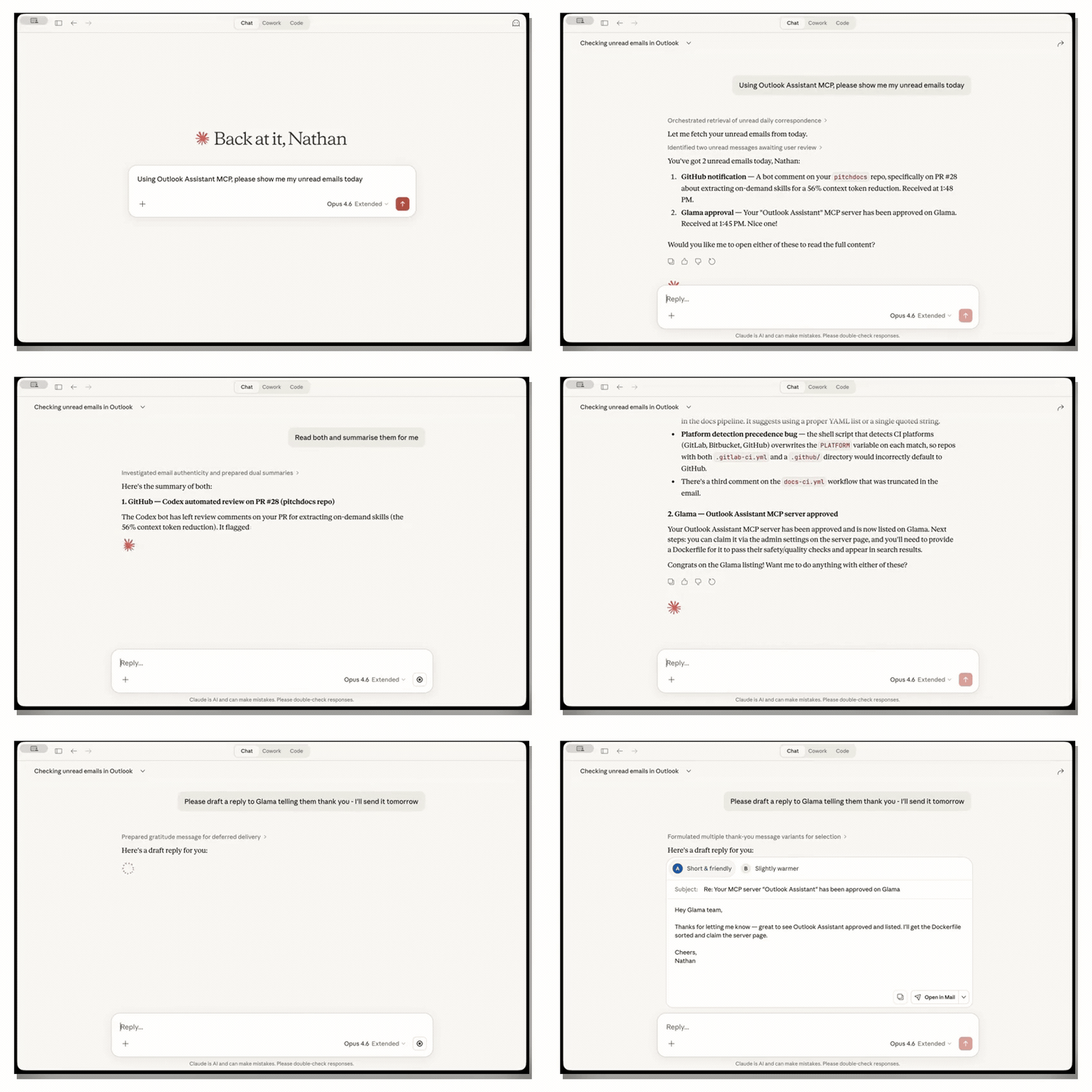
Search inbox → read & summarise → draft a reply — all from the conversation
What you can do
- 📨 Search and read emails — find messages by sender, subject, date, or keywords; read full threads with conversation grouping; batch flag, move, export, or categorise multiple emails at once
- 🛡️ Send emails with safety controls — dry-run preview, pre-send mail tips (out-of-office, mailbox full, delivery restrictions), session rate limiting, and recipient allowlist to prevent mistakes
- ✏️ Draft emails for review — create, update, and send drafts; reply and forward as drafts; preview before saving with dry-run mode
- 📅 Manage your calendar — view upcoming events, schedule meetings with attendees, decline or cancel invitations
- 📦 Export emails — save individual messages to Markdown, EML, JSON, or CSV; export full conversation threads to MBOX or HTML; bulk-export search results in one call
- 🔍 Investigate email headers — full raw header access (DKIM, SPF, DMARC, delivery chain, X-Mailer, X-Originating-IP) for phishing investigation and compliance review
- 🗂️ Organise your inbox — create folders, set up inbox rules, colour-code with categories, manage Focused Inbox — all work together for complete inbox automation
- 🔄 Track inbox changes — delta sync detects new, modified, and deleted emails since your last check, with tokens for incremental polling
- 👥 Manage contacts — search your contact book and organisational directory, create and update contact records
- ⚙️ Configure settings — set out-of-office auto-replies, working hours, and time zone
- 📬 Access shared mailboxes — read team inboxes and service accounts (Microsoft 365)
- 🏢 Find meeting rooms — search by building, floor, capacity, AV equipment, and wheelchair accessibility (Microsoft 365)
Why Outlook Assistant?
| Without Outlook Assistant | With Outlook Assistant |
|---|---|
| Switch between your AI tool and Outlook to manage email | Read, search, send, and export emails directly from your AI assistant |
| Manually search and export email threads | Full email tools including search, threading, and bulk export |
| Context-switch for calendar and contacts | Manage calendar events, contacts, and settings in one place |
| Copy-paste email content into conversations | Your AI assistant reads your emails natively with full context |
| No programmatic access to mailbox rules or categories | Create inbox rules, manage categories, configure auto-replies |
| Manually check each email for phishing red flags | Forensic header analysis — DKIM, SPF, DMARC, spam scores, and delivery chain in one call |
| Poll your inbox to check for new mail | Delta sync returns only changes since your last check, with tokens for continuous polling |
Features
| Module | Tools | What You Can Do |
|---|---|---|
| 8 | search-emails (list/search/delta/conversations), read-email (content + forensic headers), send-email (with dry-run + mail tips), draft (create/update/send/delete/reply/forward), update-email (read status, flags), attachments, export, get-mail-tips | |
| Calendar | 3 | list-events, create-event, manage-event (update/decline/cancel/delete) |
| Contacts | 2 | manage-contact (list/search/get/create/update/delete), search-people |
| Categories | 3 | manage-category (CRUD), apply-category, manage-focused-inbox |
| Settings | 1 | mailbox-settings (get/set auto-replies/set working hours) |
| Folder | 1 | folders (list/create/move/stats/delete) |
| Rules | 1 | manage-rules (list/create/update/reorder/delete) |
| Advanced | 2 | access-shared-mailbox, find-meeting-rooms |
| Auth | 1 | auth (status/authenticate/about) |
22 tools total — consolidated from 55 for optimal AI performance. See the Tools Reference for complete parameter details.
Export Formats
Format support varies by target:
| Format | Extension | target=message (single) | target=messages (batch) | target=conversation (thread) |
|---|---|---|---|---|
mime / eml | .eml | ✅ | – | ✅ |
mbox | .mbox | – | – | ✅ |
markdown | .md | ✅ | ✅ | ✅ |
json | .json | ✅ | ✅ | ✅ |
html | .html | – | – | ✅ |
csv | .csv | ✅ | ✅ | ✅ |
Export individual emails, search results, or entire conversation threads — use target=messages with a search query (or the query shortcut) to batch-export without manually collecting IDs.
Account Compatibility
Outlook Assistant works with both personal and work/school Microsoft accounts, but some features behave differently:
| Feature | Personal (Outlook.com) | Work/School (Microsoft 365) |
|---|---|---|
| Email read, send, search | Full support | Full support |
| Calendar events | Full support | Full support |
| Contacts CRUD | Full support | Full support |
| Inbox rules | Full support | Full support |
| Folders | Full support | Full support |
Free-text query search | Limited — use subject, from, to filters instead | Full KQL support |
| Categories | Full support | Full support |
| Mailbox settings | Full support | Full support |
| Focused Inbox | API works (overrides stored) but mail routing not affected | Full support |
| Shared mailboxes | Not available | Requires Mail.Read.Shared |
| Meeting room search | Not available | Requires Place.Read.All + admin consent |
Note: On personal accounts, Microsoft's
$searchAPI has limited support for free-text queries. Outlook Assistant handles this automatically with progressive search — if your query returns no results, it falls back through OData filters, boolean filters, and recent message listing to find your emails. For the most direct results on personal accounts, use the structured filter parameters (from,subject,to,receivedAfter).
What Makes This Different
- Progressive search — on accounts where Microsoft's
$searchAPI is limited, Outlook Assistant automatically falls back through up to 4 search strategies to find your emails. Most Graph API wrappers fail silently; this one adapts. - Email forensics — raw header access for DKIM, SPF, DMARC, delivery chain, X-Mailer, X-Originating-IP, and spam scores. Returns the full data so you can investigate phishing, audit compliance, or trace delivery issues. (Auto-verdict is on the v3.8.0 roadmap; today the data is surfaced and analysed in-conversation.)
- Delta sync — incremental inbox monitoring returns only what changed since your last check, with tokens for continuous polling. Designed for agent workflows that need to watch a mailbox.
- Batch operations — flag, move, export, or categorise multiple emails in a single call. Search-driven export lets you batch-export results without collecting IDs manually.
- Pre-send intelligence — check recipients for out-of-office, full mailbox, delivery restrictions, and moderation status before sending — no other Outlook MCP server offers this.
- Compound automation — rules, categories, folders, and Focused Inbox work together. Set up complete inbox management through your AI assistant in one conversation.
Safety & Token Efficiency
Outlook Assistant is designed with safety-first principles for AI-driven email access:
Destructive action safeguards — Every tool carries MCP annotations (readOnlyHint, destructiveHint, idempotentHint) so AI clients can auto-approve safe reads and prompt for confirmation on destructive operations like sending email or deleting events.
Send-email protections — The send-email tool includes:
- Pre-send mail tips (
checkRecipients: true) — check recipients for out-of-office, mailbox full, delivery restrictions before sending - Dry-run mode (
dryRun: true) — preview composed emails without sending - Session rate limiting — configurable via
OUTLOOK_MAX_EMAILS_PER_SESSION(default: unlimited) - Recipient allowlist — restrict sending to approved addresses/domains via
OUTLOOK_ALLOWED_RECIPIENTS
Recommended setup: enable both safety belts in your
.mcp.jsonfrom day one. They're off by default;auth action=aboutreports their state and prints a setup hint when unset. See.mcp.json.examplefor a copy-paste template."env": { "OUTLOOK_CLIENT_ID": "…", "OUTLOOK_CLIENT_SECRET": "…", "OUTLOOK_MAX_EMAILS_PER_SESSION": "10", "OUTLOOK_ALLOWED_RECIPIENTS": "your-domain.com,trusted@example.com" }
Draft protections — The draft tool shares send-email safety controls: dry-run preview, recipient allowlist, mail-tips validation, and rate limiting. The send action shares the send-email rate limit counter, preventing circumvention via the draft-then-send pathway.
Token-optimised architecture — Tools are consolidated using the STRAP (Single Tool, Resource, Action Pattern) approach. 22 tools instead of 55 reduces per-turn overhead by ~11,000 tokens (~64%), keeping more of the AI's context window available for your actual conversation. Fewer tools also means the AI selects the right tool more accurately — research shows tool selection degrades beyond ~40 tools.
Important: These safeguards are defence-in-depth measures that reduce risk, but they are not a guarantee against unintended actions. AI-driven access to your email is inherently sensitive — always review tool calls before approving, particularly for sends and deletes. No automated guardrail is foolproof, and you remain responsible for actions taken through your mailbox.
Quick Start
1. Install
npm install -g @littlebearapps/outlook-assistant
Or run directly without installing:
npx @littlebearapps/outlook-assistant
2. Register an Azure App
You need a Microsoft Azure app registration to authenticate. See the Azure Setup Guide for a detailed walkthrough (including first-time Azure account creation), or if you've done this before:
- Create a new app registration at portal.azure.com
- Add Microsoft Graph delegated permissions (Mail, Calendar, Contacts)
- Create a client secret and copy the Value (not the Secret ID)
- Under Authentication > Add a platform > Mobile and desktop applications — check
nativeclientURI - Enable "Allow public client flows" in Authentication > Advanced settings
- (Optional) Set redirect URI to
http://localhost:3333/auth/callback— only needed for browser auth flow
3. Configure Your MCP Client
Add to your MCP client config:
Claude Desktop (claude_desktop_config.json)
{
  "mcpServers": {
    "outlook": {
      "command": "npx",
      "args": ["@littlebearapps/outlook-assistant"],
      "env": {
        "OUTLOOK_CLIENT_ID": "your-application-client-id",
        "OUTLOOK_CLIENT_SECRET": "your-client-secret-VALUE"
      }
    }
  }
}
Claude Code (CLI)
claude mcp add outlook -- npx @littlebearapps/outlook-assistant
Then set environment variables in your .env or shell.
Cursor (.cursor/mcp.json)

Or add manually to .cursor/mcp.json:
{
  "mcpServers": {
    "outlook": {
      "command": "npx",
      "args": ["@littlebearapps/outlook-assistant"],
      "env": {
        "OUTLOOK_CLIENT_ID": "your-application-client-id",
        "OUTLOOK_CLIENT_SECRET": "your-client-secret-VALUE"
      }
    }
  }
}
Windsurf (~/.codeium/windsurf/mcp_config.json)
{
  "mcpServers": {
    "outlook": {
      "command": "npx",
      "args": ["@littlebearapps/outlook-assistant"],
      "env": {
        "OUTLOOK_CLIENT_ID": "your-application-client-id",
        "OUTLOOK_CLIENT_SECRET": "your-client-secret-VALUE"
      }
    }
  }
}
4. Authenticate
- Start the auth server:
outlook-assistant-auth(ornpx @littlebearapps/outlook-assistant-auth) - In your AI assistant, use the
authtool withaction=authenticateto get an OAuth URL - Open the URL, sign in with your Microsoft account, and grant permissions
- Tokens are saved locally and refresh automatically
Note: The auth server needs
OUTLOOK_CLIENT_IDandOUTLOOK_CLIENT_SECRETenvironment variables. Your MCP client's"env"config only applies to the MCP server process — when running the auth server separately, ensure these are set in a.envfile or exported in your shell.
Installation
Prerequisites
- Node.js 18.0.0 or higher
- npm (included with Node.js)
- Azure account for app registration (free tier works)
From npm (recommended)
npm install -g @littlebearapps/outlook-assistant
From source
git clone https://github.com/littlebearapps/outlook-assistant.git
cd outlook-assistant
npm install
Azure App Registration
First time with Azure? The Azure Setup Guide covers everything from creating an account to your first authentication, including billing setup and common pitfalls.
Create the App
- Open Azure Portal
- Sign in with a Microsoft Work or Personal account
- Search for App registrations and click New registration
- Enter a name (e.g. "Outlook Assistant Server")
- Select Accounts in any organizational directory and personal Microsoft accounts
- Set redirect URI: platform Web, URI
http://localhost:3333/auth/callback - Click Register
- Copy the Application (client) ID
Add Permissions
- Go to API permissions > Add a permission > Microsoft Graph > Delegated permissions
- Add these required permissions:
offline_access— refresh tokens between sessionsUser.Read— basic profileMail.Read,Mail.ReadWrite,Mail.Send— email operationsCalendars.Read,Calendars.ReadWrite— calendar operationsContacts.Read,Contacts.ReadWrite— contact managementMailboxSettings.ReadWrite— settings, auto-replies, categoriesPeople.Read— people search
- Optionally add org-only permissions (work/school accounts only):
Mail.Read.Shared— shared mailbox accessPlace.Read.All— meeting room search (requires admin consent)
- Click Add permissions
Create a Client Secret
- Go to Certificates & secrets > New client secret
- Enter a description and select expiration
- Click Add
- Copy the secret Value immediately — you won't be able to see it again. Use the Value, not the Secret ID.
Configuration
Environment Variables
Create a .env file from the example:
cp .env.example .env
Edit with your Azure credentials:
OUTLOOK_CLIENT_ID=your-application-client-id
OUTLOOK_CLIENT_SECRET=your-client-secret-VALUE
USE_TEST_MODE=false
Note: The server also accepts
MS_CLIENT_IDandMS_CLIENT_SECRETfor backwards compatibility.
Optional overrides (v3.8.0+) — see .env.example for the full list with commented worked examples:
| Variable | Purpose | Default |
|---|---|---|
OUTLOOK_AUTH_AUDIENCE | OAuth audience: common, consumers (personal-only Azure apps), organizations, or single-tenant GUID. Fixes AADSTS9002331 for personal-only app registrations. | common |
OUTLOOK_DEFAULT_TIMEZONE | IANA timezone applied to calendar events when callers don't pass one (e.g. Europe/London, America/New_York). | Australia/Melbourne |
OUTLOOK_MAX_EMAILS_PER_SESSION | Cap on send-email + draft send per MCP server lifetime. | unlimited |
OUTLOOK_ALLOWED_RECIPIENTS | Comma-separated allowlist of domains/addresses for sends, drafts, and rule forwards. | unrestricted |
MCP Client Configuration
See Quick Start — Configure Your MCP Client above for Claude Desktop, Claude Code, Cursor, and Windsurf configs.
If installed from source, use node instead of npx:
{
  "mcpServers": {
    "outlook": {
      "command": "node",
      "args": ["/path/to/outlook-assistant/index.js"],
      "env": {
        "OUTLOOK_CLIENT_ID": "your-application-client-id",
        "OUTLOOK_CLIENT_SECRET": "your-client-secret-VALUE"
      }
    }
  }
}
Authentication Flow
Device Code Flow (Default — Recommended)
No auth server needed. Works everywhere, including remote/headless environments.
- Ask your AI assistant to authenticate (calls
authtool withaction=authenticate) - Visit the URL shown (
microsoft.com/devicelogin) on any browser, any device - Enter the code, sign in with your Microsoft account, and grant permissions
- Tell your AI assistant to complete authentication (calls
authwithaction=device-code-complete) - Tokens are saved to
~/.outlook-assistant-tokens.jsonand refresh automatically
Prerequisite: Enable "Allow public client flows" in Azure Portal > your app > Authentication > Advanced settings.
Server restarts (v3.7.2+): Device code state is persisted to
~/.outlook-assistant-pending-auth.json, sodevice-code-completeworks even if the MCP server restarts between steps 1 and 4 (e.g., Untether/Telegram bridge, Claude Desktop session changes).
Browser Redirect Flow (Alternative)
For localhost development or if you prefer the traditional OAuth flow:
npm run auth-server
This starts a local server on port 3333 to handle the OAuth callback.
- In your AI assistant, use the
authtool withaction=authenticate, method=browser - Open the provided URL in your browser
- Sign in and grant permissions — tokens are saved automatically
Note: The auth server reads
OUTLOOK_CLIENT_IDandOUTLOOK_CLIENT_SECRETfrom environment variables. Your MCP client's"env"config only applies to the MCP server process, not a separately-started auth server.
Directory Structure
outlook-assistant/
├── index.js                 # Main entry point (22 tools)
├── config.js                # Configuration settings
├── outlook-auth-server.js   # OAuth server (port 3333)
├── auth/                    # Authentication module (1 tool)
├── email/                   # Email module (7 tools)
│   ├── mail-tips.js         # Pre-send recipient validation
│   ├── headers.js           # Email header retrieval
│   ├── mime.js              # Raw MIME/EML content
│   ├── conversations.js     # Thread listing/export
│   ├── attachments.js       # Attachment operations
│   └── ...
├── calendar/                # Calendar module (3 tools)
├── contacts/                # Contacts module (2 tools)
├── categories/              # Categories module (3 tools)
├── settings/                # Settings module (1 tool)
├── folder/                  # Folder module (1 tool)
├── rules/                   # Rules module (1 tool)
├── advanced/                # Advanced module (2 tools)
└── utils/
    ├── graph-api.js         # Microsoft Graph API client (includes $batch)
    ├── safety.js            # Rate limiting, recipient allowlist, dry-run
    ├── odata-helpers.js     # OData query building
    ├── field-presets.js     # Token-efficient field selections
    ├── response-formatter.js # Verbosity levels
    └── mock-data.js         # Test mode data
Troubleshooting
"Cannot find module '@modelcontextprotocol/sdk/server/index.js'"
npm install
"EADDRINUSE: address already in use :::3333"
npx kill-port 3333
npm run auth-server
"Invalid client secret" (AADSTS7000215)
You're using the Secret ID instead of the Secret Value. Go to Azure Portal > Certificates & secrets and copy the Value column.
Authentication URL doesn't work
If using browser flow: start the auth server first with npm run auth-server. If using device code flow: visit microsoft.com/devicelogin instead.
Device code "invalid_client"
Enable "Allow public client flows" in Azure Portal > App registrations > Authentication > Advanced settings.
Token refresh fails after ~60 minutes (device code auth)
Fixed in v3.7.2. Earlier versions sent client_secret in token refresh requests for device-code auth, which Microsoft rejects for public client flows. Update to v3.7.2+ or re-authenticate.
Empty API responses
Check authentication status with the auth tool (action=status). Tokens may have expired — re-authenticate if needed.
Development
Running Tests
npm test                     # Jest unit tests
npm run inspect              # MCP Inspector (interactive)
Test Mode
Run with mock data (no real API calls):
USE_TEST_MODE=true npm start
Extending the Server
- Create a new module directory (e.g.
tasks/) - Implement tool handlers in separate files
- Export tool definitions from the module's
index.js - Import and add tools to the
TOOLSarray in mainindex.js - Add tests in
test/ - Update
docs/quickrefs/tools-reference.md
Documentation
| Guide | Description |
|---|---|
| Getting Started | Install, configure, and authenticate — start here |
| Azure Setup Guide | Azure account creation, app registration, permissions, and secrets |
| How-To Guides | 29 practical guides for email, calendar, contacts, and settings |
| Roadmap | Active milestones (v3.7.5, v3.8.0, v3.9.0) and recent releases |
| Troubleshooting & FAQ | Common problems, re-authentication, and frequently asked questions |
| Tools Reference | All 22 tools with parameters |
| AI Agent Guide | Tool selection and workflow patterns for AI agents |
Full documentation: docs/
Known Limitations
- Personal account search: Free-text
queryandkqlQueryrely on Microsoft's$searchAPI, which has limited support on personal Outlook.com accounts. Outlook Assistant mitigates this with progressive search fallback (trying OData filters automatically), but for the most direct results, use structured filters (from,subject,to,receivedAfter). - Focused Inbox: Only available on work/school Microsoft 365 accounts.
- Shared mailboxes: Require
Mail.Read.Sharedpermission and a work/school account. - Meeting room search: Requires
Place.Read.Allpermission with admin consent (work/school accounts only). - Export default path: Exports save to the system temp directory by default. Use
savePathoroutputDirto specify a different location.
Contributing
Contributions are welcome! Please see CONTRIBUTING.md for guidelines.
Security
For security concerns, please see our Security Policy. Do not open public issues for vulnerabilities.
Changelog
See CHANGELOG.md for version history.
About
Built and maintained by Little Bear Apps. Outlook Assistant is open source under the MIT License.
Featured
Keep your Mac awake while Claude Code and 40+ AI agents run. Sleeps when they're idle.
One time payment $9 →Integrate web data into your AI product. One API to scrape website & brand data.
Get API Key Now →Agent, run crypto. Access onchain data & trade routes via 1inch.
Install now →On Capafy, your Skill runs online 24/7 as an agent product, and you get paid every time someone uses it.
Start earning →Configuration
OUTLOOK_CLIENT_ID*Azure AD application client ID
OUTLOOK_CLIENT_SECRET*secretAzure AD application client secret value
Registryactive
Package@littlebearapps/outlook-mcp
TransportSTDIO
AuthRequired
UpdatedMar 6, 2026


