
Summary
Gives Claude direct terminal access and comprehensive file operations on your local machine. Supports command execution with streaming output, process management, and session handling for long-running tasks. Goes beyond basic filesystem work with native Excel, PDF, and DOCX support, plus in-memory code execution for Python and Node.js. Includes surgical text replacements via ripgrep-based search, negative offset file reading to grab content from the end of files, and recursive directory listing with depth controls. Ships with audit logging, symlink traversal prevention, and command blocklists. Install via npx, bash script, Smithery, or manual config. The developer also offers a standalone Desktop Commander app if you want a GUI layer and multi-model support beyond Claude.
Install to Claude Code
verifiedclaude mcp add desktop-commander -- npx -y @wonderwhy-er/desktop-commanderRun in your terminal. Replace YOUR_* placeholders with real values; add --scope user to install for every project.
Review the command, arguments, and environment values before installing — MCP servers run with your local permissions.


Keep your Mac awake while Claude Code and 40+ AI agents run. Sleeps when they're idle.
One time payment $9 →

Integrate web data into your AI product. One API to scrape website & brand data.
Get API Key Now →
Agent, run crypto. Access onchain data & trade routes via 1inch.
Install now →
On Capafy, your Skill runs online 24/7 as an agent product, and you get paid every time someone uses it.
Start earning →
Tools
Verified live against the running server on Jun 10, 2026.
verified live26 tools
get_configGet the complete server configuration as JSON. Config includes fields for: - blockedCommands (array of blocked shell commands) - defaultShell (shell to use for commands) - allowedDirectories (paths the server can access) - fileReadLineLimit (max lines for read_file, default 10...
Get the complete server configuration as JSON. Config includes fields for: - blockedCommands (array of blocked shell commands) - defaultShell (shell to use for commands) - allowedDirectories (paths the server can access) - fileReadLineLimit (max lines for read_file, default 10...
No parameters — call it with no arguments.
set_config_valueSet a specific configuration value by key. WARNING: Should be used in a separate chat from file operations and command execution to prevent security issues. Config keys include: - blockedCommands (array) - defaultShell (string) - allowedDirectories (array of paths) - fileReadL...3 params
Set a specific configuration value by key. WARNING: Should be used in a separate chat from file operations and command execution to prevent security issues. Config keys include: - blockedCommands (array) - defaultShell (string) - allowedDirectories (array of paths) - fileReadL...
Parameters* required
key*stringvalue*valueoriginstringone of
ui · llmread_fileRead contents from files and URLs. Read PDF files and extract content as markdown and images. Prefer this over 'execute_command' with cat/type for viewing files. Supports partial file reading with: - 'offset' (start line, default: 0) * Positive: Start from line N (0-based inde...7 params
Read contents from files and URLs. Read PDF files and extract content as markdown and images. Prefer this over 'execute_command' with cat/type for viewing files. Supports partial file reading with: - 'offset' (start line, default: 0) * Positive: Start from line N (0-based inde...
Parameters* required
path*stringisUrlbooleandefault: false
rangestringsheetstringlengthnumberdefault: 1000
offsetnumberdefault: 0
optionsobjectread_multiple_filesRead the contents of multiple files simultaneously. Each file's content is returned with its path as a reference. Handles text files normally and renders images as viewable content. Recognized image types: PNG, JPEG, GIF, WebP. Failed reads for individual files won't stop the...1 params
Read the contents of multiple files simultaneously. Each file's content is returned with its path as a reference. Handles text files normally and renders images as viewable content. Recognized image types: PNG, JPEG, GIF, WebP. Failed reads for individual files won't stop the...
Parameters* required
paths*arraywrite_fileWrite or append to file contents. IMPORTANT: DO NOT use this tool to create PDF files. Use 'write_pdf' for all PDF creation tasks. DO NOT use this tool to edit DOCX files. Use 'edit_block' with old_string/new_string instead. To CREATE a new DOCX, use write_file with .docx exte...3 params
Write or append to file contents. IMPORTANT: DO NOT use this tool to create PDF files. Use 'write_pdf' for all PDF creation tasks. DO NOT use this tool to edit DOCX files. Use 'edit_block' with old_string/new_string instead. To CREATE a new DOCX, use write_file with .docx exte...
Parameters* required
modestringone of
rewrite · appenddefault: rewritepath*stringcontent*stringwrite_pdfCreate a new PDF file or modify an existing one. THIS IS THE ONLY TOOL FOR CREATING AND MODIFYING PDF FILES. RULES ABOUT FILENAMES: - When creating a new PDF, 'outputPath' MUST be provided and MUST use a new unique filename (e.g., "result_01.pdf", "analysis_2025_01.pdf", etc.)...4 params
Create a new PDF file or modify an existing one. THIS IS THE ONLY TOOL FOR CREATING AND MODIFYING PDF FILES. RULES ABOUT FILENAMES: - When creating a new PDF, 'outputPath' MUST be provided and MUST use a new unique filename (e.g., "result_01.pdf", "analysis_2025_01.pdf", etc.)...
Parameters* required
path*stringcontent*valueoptionsobjectoutputPathstringcreate_directoryCreate a new directory or ensure a directory exists. Can create multiple nested directories in one operation. Only works within allowed directories. IMPORTANT: Always use absolute paths for reliability. Paths are automatically normalized regardless of slash direction. Relative...1 params
Create a new directory or ensure a directory exists. Can create multiple nested directories in one operation. Only works within allowed directories. IMPORTANT: Always use absolute paths for reliability. Paths are automatically normalized regardless of slash direction. Relative...
Parameters* required
path*stringlist_directoryGet a detailed listing of all files and directories in a specified path. Use this instead of 'execute_command' with ls/dir commands. Results distinguish between files and directories with [FILE] and [DIR] prefixes. Supports recursive listing with the 'depth' parameter (default...2 params
Get a detailed listing of all files and directories in a specified path. Use this instead of 'execute_command' with ls/dir commands. Results distinguish between files and directories with [FILE] and [DIR] prefixes. Supports recursive listing with the 'depth' parameter (default...
Parameters* required
path*stringdepthnumberdefault: 2
move_fileMove or rename files and directories. Can move files between directories and rename them in a single operation. Both source and destination must be within allowed directories. IMPORTANT: Always use absolute paths for reliability. Paths are automatically normalized regardless o...2 params
Move or rename files and directories. Can move files between directories and rename them in a single operation. Both source and destination must be within allowed directories. IMPORTANT: Always use absolute paths for reliability. Paths are automatically normalized regardless o...
Parameters* required
source*stringdestination*stringstart_searchStart a streaming search that can return results progressively. SEARCH STRATEGY GUIDE: Choose the right search type based on what the user is looking for: USE searchType="files" WHEN: - User asks for specific files: "find package.json", "locate config files" - Pattern looks li...11 params
Start a streaming search that can return results progressively. SEARCH STRATEGY GUIDE: Choose the right search type based on what the user is looking for: USE searchType="files" WHEN: - User asks for specific files: "find package.json", "locate config files" - Pattern looks li...
Parameters* required
path*stringpattern*stringignoreCasebooleandefault: true
maxResultsnumbersearchTypestringone of
files · contentdefault: filestimeout_msnumberfilePatternstringcontextLinesnumberdefault: 5
includeHiddenbooleandefault: false
literalSearchbooleandefault: false
earlyTerminationbooleanget_more_search_resultsGet more results from an active search with offset-based pagination. Supports partial result reading with: - 'offset' (start result index, default: 0) * Positive: Start from result N (0-based indexing) * Negative: Read last N results from end (tail behavior) - 'length' (max re...3 params
Get more results from an active search with offset-based pagination. Supports partial result reading with: - 'offset' (start result index, default: 0) * Positive: Start from result N (0-based indexing) * Negative: Read last N results from end (tail behavior) - 'length' (max re...
Parameters* required
lengthnumberdefault: 100
offsetnumberdefault: 0
sessionId*stringstop_searchStop an active search. Stops the background search process gracefully. Use this when you've found what you need or if a search is taking too long. Similar to force_terminate for terminal processes. The search will still be available for reading final results until it's automat...1 params
Stop an active search. Stops the background search process gracefully. Use this when you've found what you need or if a search is taking too long. Similar to force_terminate for terminal processes. The search will still be available for reading final results until it's automat...
Parameters* required
sessionId*stringlist_searchesList all active searches. Shows search IDs, search types, patterns, status, and runtime. Similar to list_sessions for terminal processes. Useful for managing multiple concurrent searches. This command can be referenced as "DC: ..." or "use Desktop Commander to ..." in your ins...
List all active searches. Shows search IDs, search types, patterns, status, and runtime. Similar to list_sessions for terminal processes. Useful for managing multiple concurrent searches. This command can be referenced as "DC: ..." or "use Desktop Commander to ..." in your ins...
No parameters — call it with no arguments.
get_file_infoRetrieve detailed metadata about a file or directory including: - size - creation time - last modified time - permissions - type - lineCount (for text files) - lastLine (zero-indexed number of last line, for text files) - appendPosition (line number for appending, for text fil...1 params
Retrieve detailed metadata about a file or directory including: - size - creation time - last modified time - permissions - type - lineCount (for text files) - lastLine (zero-indexed number of last line, for text files) - appendPosition (line number for appending, for text fil...
Parameters* required
path*stringedit_blockApply surgical edits to files. BEST PRACTICE: Make multiple small, focused edits rather than one large edit. Each edit_block call should change only what needs to be changed - include just enough context to uniquely identify the text being modified. FORMAT HANDLING (by extensi...7 params
Apply surgical edits to files. BEST PRACTICE: Make multiple small, focused edits rather than one large edit. Each edit_block call should change only what needs to be changed - include just enough context to uniquely identify the text being modified. FORMAT HANDLING (by extensi...
Parameters* required
rangestringcontentvalueoptionsobjectfile_path*stringnew_stringstringold_stringstringexpected_replacementsnumberdefault: 1
start_processStart a new terminal process with intelligent state detection. PRIMARY TOOL FOR FILE ANALYSIS AND DATA PROCESSING This is the ONLY correct tool for analyzing local files (CSV, JSON, logs, etc.). The analysis tool CANNOT access local files and WILL FAIL - always use processes f...4 params
Start a new terminal process with intelligent state detection. PRIMARY TOOL FOR FILE ANALYSIS AND DATA PROCESSING This is the ONLY correct tool for analyzing local files (CSV, JSON, logs, etc.). The analysis tool CANNOT access local files and WILL FAIL - always use processes f...
Parameters* required
shellstringcommand*stringtimeout_ms*numberverbose_timingbooleanread_process_outputRead output from a running process with file-like pagination support. Supports partial output reading with offset and length parameters (like read_file): - 'offset' (start line, default: 0) * offset=0: Read NEW output since last read (default, like old behavior) * Positive: Re...5 params
Read output from a running process with file-like pagination support. Supports partial output reading with offset and length parameters (like read_file): - 'offset' (start line, default: 0) * offset=0: Read NEW output since last read (default, like old behavior) * Positive: Re...
Parameters* required
pid*numberlengthnumberoffsetnumbertimeout_msnumberverbose_timingbooleaninteract_with_processSend input to a running process and automatically receive the response. CRITICAL: THIS IS THE PRIMARY TOOL FOR ALL LOCAL FILE ANALYSIS For ANY local file analysis (CSV, JSON, data processing), ALWAYS use this instead of the analysis tool. The analysis tool CANNOT access local...5 params
Send input to a running process and automatically receive the response. CRITICAL: THIS IS THE PRIMARY TOOL FOR ALL LOCAL FILE ANALYSIS For ANY local file analysis (CSV, JSON, data processing), ALWAYS use this instead of the analysis tool. The analysis tool CANNOT access local...
Parameters* required
pid*numberinput*stringtimeout_msnumberverbose_timingbooleanwait_for_promptbooleanforce_terminateForce terminate a running terminal session. This command can be referenced as "DC: ..." or "use Desktop Commander to ..." in your instructions.1 params
Force terminate a running terminal session. This command can be referenced as "DC: ..." or "use Desktop Commander to ..." in your instructions.
Parameters* required
pid*numberlist_sessionsList all active terminal sessions. Shows session status including: - PID: Process identifier - Blocked: Whether session is waiting for input - Runtime: How long the session has been running DEBUGGING REPLs: - "Blocked: true" often means REPL is waiting for input - Use this to...
List all active terminal sessions. Shows session status including: - PID: Process identifier - Blocked: Whether session is waiting for input - Runtime: How long the session has been running DEBUGGING REPLs: - "Blocked: true" often means REPL is waiting for input - Use this to...
No parameters — call it with no arguments.
list_processesList all running processes. Returns process information including PID, command name, CPU usage, and memory usage. This command can be referenced as "DC: ..." or "use Desktop Commander to ..." in your instructions.
List all running processes. Returns process information including PID, command name, CPU usage, and memory usage. This command can be referenced as "DC: ..." or "use Desktop Commander to ..." in your instructions.
No parameters — call it with no arguments.
kill_processTerminate a running process by PID. Use with caution as this will forcefully terminate the specified process. This command can be referenced as "DC: ..." or "use Desktop Commander to ..." in your instructions.1 params
Terminate a running process by PID. Use with caution as this will forcefully terminate the specified process. This command can be referenced as "DC: ..." or "use Desktop Commander to ..." in your instructions.
Parameters* required
pid*numberget_usage_statsGet usage statistics for debugging and analysis. Returns summary of tool usage, success/failure rates, and performance metrics. This command can be referenced as "DC: ..." or "use Desktop Commander to ..." in your instructions.
Get usage statistics for debugging and analysis. Returns summary of tool usage, success/failure rates, and performance metrics. This command can be referenced as "DC: ..." or "use Desktop Commander to ..." in your instructions.
No parameters — call it with no arguments.
get_recent_tool_callsGet recent tool call history with their arguments and outputs. Returns chronological list of tool calls made during this session. Useful for: - Onboarding new chats about work already done - Recovering context after chat history loss - Debugging tool call sequences Note: Does...3 params
Get recent tool call history with their arguments and outputs. Returns chronological list of tool calls made during this session. Useful for: - Onboarding new chats about work already done - Recovering context after chat history loss - Debugging tool call sequences Note: Does...
Parameters* required
sincestringtoolNamestringmaxResultsnumberdefault: 50
give_feedback_to_desktop_commanderOpen feedback form in browser to provide feedback about Desktop Commander. IMPORTANT: This tool simply opens the feedback form - no pre-filling available. The user will fill out the form manually in their browser. WORKFLOW: 1. When user agrees to give feedback, just call this...
Open feedback form in browser to provide feedback about Desktop Commander. IMPORTANT: This tool simply opens the feedback form - no pre-filling available. The user will fill out the form manually in their browser. WORKFLOW: 1. When user agrees to give feedback, just call this...
No parameters — call it with no arguments.
get_promptsRetrieve a specific Desktop Commander onboarding prompt by ID and execute it. SIMPLIFIED ONBOARDING V2: This tool only supports direct prompt retrieval. The onboarding system presents 5 options as a simple numbered list: 1. Organize my Downloads folder (promptId: 'onb2_01') 2....2 params
Retrieve a specific Desktop Commander onboarding prompt by ID and execute it. SIMPLIFIED ONBOARDING V2: This tool only supports direct prompt retrieval. The onboarding system presents 5 options as a simple numbered list: 1. Organize my Downloads folder (promptId: 'onb2_01') 2....
Parameters* required
action*stringone of
get_promptpromptId*stringDesktop Commander MCP
Search, update, manage files and run terminal commands with AI



Work with code and text, run processes, and automate tasks, going far beyond other AI editors - while using host client subscriptions instead of API token costs.
🖥️ Try the Desktop Commander App (Beta)
Want a better experience? The Desktop Commander App gives you everything the MCP server does, plus:
- Use any AI model — Claude, GPT-4.5, Gemini 2.5, or any model you prefer
- See file changes live — visual file previews as AI edits your files
- Add custom MCPs and context — extend with your own tools, no config files
- Coming soon — skills system, dictation, background scheduled tasks, and more
👉 Download the App (macOS & Windows)
The MCP server below still works great with Claude Desktop and other MCP clients — the app is for those who want a dedicated, polished experience.
Table of Contents
- Features
- How to install
- Getting Started
- Usage
- File Preview UI & Markdown Editor
- Handling Long-Running Commands
- Work in Progress and TODOs
- Sponsors and Supporters
- Website
- Media
- Testimonials
- Frequently Asked Questions
- Contributing
- License
All of your AI development tools in one place. Desktop Commander puts all dev tools in one chat. Execute long-running terminal commands on your computer and manage processes through Model Context Protocol (MCP). Built on top of MCP Filesystem Server to provide additional search and replace file editing capabilities.
Features
- Remote AI Control - Use Desktop Commander from ChatGPT, Claude web, and other AI services via Remote MCP
- File Preview UI - Visual file previews in Claude Desktop with rendered markdown, inline images, expandable content, built-in markdown editor, and quick "Open in folder" access
- Enhanced terminal commands with interactive process control
- Execute code in memory (Python, Node.js, R) without saving files
- Instant data analysis - just ask to analyze CSV/JSON/Excel files
- Native Excel file support - Read, write, edit, and search Excel files (.xlsx, .xls, .xlsm) without external tools
- PDF support - Read PDFs with text extraction, create new PDFs from markdown, modify existing PDFs
- DOCX support - Read, create, edit, and search Word documents (.docx) with surgical XML editing and markdown-to-DOCX conversion
- Interact with running processes (SSH, databases, development servers)
- Execute terminal commands with output streaming
- Command timeout and background execution support
- Process management (list and kill processes)
- Session management for long-running commands
- Process output pagination - Read terminal output with offset/length controls to prevent context overflow
- Server configuration management:
- Get/set configuration values
- Update multiple settings at once
- Dynamic configuration changes without server restart
- Full filesystem operations:
- Read/write files (text, Excel, PDF, DOCX)
- Create/list directories
- Recursive directory listing with configurable depth and context overflow protection for large folders
- Move files/directories
- Search files and content (including Excel content)
- Get file metadata
- Negative offset file reading: Read from end of files using negative offset values (like Unix tail)
- Code editing capabilities:
- Surgical text replacements for small changes
- Full file rewrites for major changes
- Multiple file support
- Pattern-based replacements
- vscode-ripgrep based recursive code or text search in folders
- Comprehensive audit logging:
- All tool calls are automatically logged
- Log rotation with 10MB size limit
- Detailed timestamps and arguments
- Security hardening:
- Symlink traversal prevention on file operations
- Command blocklist with bypass protection
- Docker isolation for full sandboxing
- See SECURITY.md for details
How to install
Install in Claude Desktop
Desktop Commander offers multiple installation methods for Claude Desktop.
📋 Update & Uninstall Information: Options 1, 2, 3, 4, and 6 have automatic updates. Option 5 requires manual updates. See below for details.
Option 1: Install through npx ⭐ Auto-Updates (Requires Node.js)
Just run this in terminal:
npx @wonderwhy-er/desktop-commander@latest setup
For debugging mode (allows Node.js inspector connection):
npx @wonderwhy-er/desktop-commander@latest setup --debug
Command line options during setup:
--debug: Enable debugging mode for Node.js inspector--no-onboarding: Disable onboarding prompts for new users
Restart Claude if running.
✅ Auto-Updates: Yes - automatically updates when you restart Claude
🔄 Manual Update: Run the setup command again
🗑️ Uninstall: Run npx @wonderwhy-er/desktop-commander@latest remove
Option 2: Using bash script installer (macOS) ⭐ Auto-Updates (Installs Node.js if needed)
curl -fsSL https://raw.githubusercontent.com/wonderwhy-er/DesktopCommanderMCP/refs/heads/main/install.sh | bash
This script handles all dependencies and configuration automatically.
✅ Auto-Updates: Yes
🔄 Manual Update: Re-run the bash installer command above
🗑️ Uninstall: Run npx @wonderwhy-er/desktop-commander@latest remove
Option 3: Installing via Smithery ⭐ Auto-Updates (Requires Node.js)
- Visit: https://smithery.ai/server/@wonderwhy-er/desktop-commander
- Login to Smithery if you haven't already
- Select your client (Claude Desktop) on the right side
- Install with the provided key that appears after selecting your client
- Restart Claude Desktop
✅ Auto-Updates: Yes - automatically updates when you restart Claude
🔄 Manual Update: Visit the Smithery page and reinstall
Option 4: Add to claude_desktop_config manually ⭐ Auto-Updates (Requires Node.js)
Add this entry to your claude_desktop_config.json:
- On Mac:
~/Library/Application Support/Claude/claude_desktop_config.json - On Windows:
%APPDATA%\Claude\claude_desktop_config.json - On Linux:
~/.config/Claude/claude_desktop_config.json
{
  "mcpServers": {
    "desktop-commander": {
      "command": "npx",
      "args": [
        "-y",
        "@wonderwhy-er/desktop-commander@latest"
      ]
    }
  }
}
Restart Claude if running.
✅ Auto-Updates: Yes - automatically updates when you restart Claude
🔄 Manual Update: Run the setup command again
🗑️ Uninstall: Run npx @wonderwhy-er/desktop-commander@latest remove or remove the entry from your claude_desktop_config.json
Option 5: Checkout locally ❌ Manual Updates (Requires Node.js)
git clone https://github.com/wonderwhy-er/DesktopCommanderMCP.git
cd DesktopCommanderMCP
npm run setup
Restart Claude if running.
The setup command will install dependencies, build the server, and configure Claude's desktop app.
❌ Auto-Updates: No - requires manual git updates
🔄 Manual Update: cd DesktopCommanderMCP && git pull && npm run setup
🗑️ Uninstall: Run npx @wonderwhy-er/desktop-commander@latest remove or remove the cloned directory and MCP server entry from Claude config
Option 6: Docker Installation 🐳 ⭐ Auto-Updates (No Node.js Required)
Perfect for users who want isolation or don't have Node.js installed. Runs in a sandboxed Docker container with a persistent work environment.
Prerequisites: Docker Desktop installed and running, Claude Desktop app installed.
macOS/Linux:
bash <(curl -fsSL https://raw.githubusercontent.com/wonderwhy-er/DesktopCommanderMCP/refs/heads/main/install-docker.sh)
Windows PowerShell:
iex ((New-Object System.Net.WebClient).DownloadString('https://raw.githubusercontent.com/wonderwhy-er/DesktopCommanderMCP/refs/heads/main/install-docker.ps1'))
The installer will check Docker, pull the image, prompt for folder mounting, and configure Claude Desktop.
Docker persistence: Your tools, configs, work files, and package caches all survive restarts.
Manual Docker Configuration
Basic setup (no file access):
{
  "mcpServers": {
    "desktop-commander-in-docker": {
      "command": "docker",
      "args": ["run", "-i", "--rm", "mcp/desktop-commander:latest"]
    }
  }
}
With folder mounting:
{
  "mcpServers": {
    "desktop-commander-in-docker": {
      "command": "docker",
      "args": [
        "run", "-i", "--rm",
        "-v", "/Users/username/Desktop:/mnt/desktop",
        "-v", "/Users/username/Documents:/mnt/documents",
        "mcp/desktop-commander:latest"
      ]
    }
  }
}
Advanced folder mounting:
{
  "mcpServers": {
    "desktop-commander-in-docker": {
      "command": "docker",
      "args": [
        "run", "-i", "--rm",
        "-v", "dc-system:/usr",
        "-v", "dc-home:/root",
        "-v", "dc-workspace:/workspace",
        "-v", "dc-packages:/var",
        "-v", "/Users/username/Projects:/mnt/Projects",
        "-v", "/Users/username/Downloads:/mnt/Downloads",
        "mcp/desktop-commander:latest"
      ]
    }
  }
}
Docker Management Commands
macOS/Linux:
# Check status
bash <(curl -fsSL https://raw.githubusercontent.com/wonderwhy-er/DesktopCommanderMCP/refs/heads/main/install-docker.sh) --status

# Reset all persistent data
bash <(curl -fsSL https://raw.githubusercontent.com/wonderwhy-er/DesktopCommanderMCP/refs/heads/main/install-docker.sh) --reset
Windows PowerShell:
# Check status
$script = (New-Object System.Net.WebClient).DownloadString('https://raw.githubusercontent.com/wonderwhy-er/DesktopCommanderMCP/refs/heads/main/install-docker.ps1'); & ([ScriptBlock]::Create("$script")) -Status

# Reset all data
$script = (New-Object System.Net.WebClient).DownloadString('https://raw.githubusercontent.com/wonderwhy-er/DesktopCommanderMCP/refs/heads/main/install-docker.ps1'); & ([ScriptBlock]::Create("$script")) -Reset

# Show help
$script = (New-Object System.Net.WebClient).DownloadString('https://raw.githubusercontent.com/wonderwhy-er/DesktopCommanderMCP/refs/heads/main/install-docker.ps1'); & ([ScriptBlock]::Create("$script")) -Help
Troubleshooting: Reset and reinstall from scratch:
bash <(curl -fsSL https://raw.githubusercontent.com/wonderwhy-er/DesktopCommanderMCP/refs/heads/main/install-docker.sh) --reset && bash <(curl -fsSL https://raw.githubusercontent.com/wonderwhy-er/DesktopCommanderMCP/refs/heads/main/install-docker.sh)
✅ Auto-Updates: Yes - latest tag automatically gets newer versions
🔄 Manual Update: docker pull mcp/desktop-commander:latest then restart Claude
Install in Other Clients
Desktop Commander works with any MCP-compatible client. The standard JSON configuration is:
{
  "mcpServers": {
    "desktop-commander": {
      "command": "npx",
      "args": ["-y", "@wonderwhy-er/desktop-commander@latest"]
    }
  }
}
Add this to your client's MCP configuration file at the locations below:
Cursor

Or add manually to ~/.cursor/mcp.json (global) or .cursor/mcp.json in your project folder (project-specific).
See Cursor MCP docs for more info.
Windsurf
Add to ~/.codeium/windsurf/mcp_config.json. See Windsurf MCP docs for more info.
VS Code / GitHub Copilot
Add to .vscode/mcp.json in your project or VS Code User Settings (JSON). Make sure MCP is enabled under Chat > MCP. Works in Agent mode.
See VS Code MCP docs for more info.
Cline
Configure through the Cline extension settings in VS Code. Open the Cline sidebar, click the MCP Servers icon, and add the JSON configuration above. See Cline MCP docs for more info.
Roo Code
Add to your Roo Code MCP configuration file. See Roo Code MCP docs for more info.
Claude Code
claude mcp add --scope user desktop-commander -- npx -y @wonderwhy-er/desktop-commander@latest
Remove --scope user to install for the current project only. See Claude Code MCP docs for more info.
Trae
Use the "Add manually" feature and paste the JSON configuration above. See Trae MCP docs for more info.
Kiro
Navigate to Kiro > MCP Servers, click + Add, and paste the JSON configuration above. See Kiro MCP docs for more info.
Codex (OpenAI)
Codex uses TOML configuration. Run this command to add Desktop Commander:
codex mcp add desktop-commander -- npx -y @wonderwhy-er/desktop-commander@latest
Or manually add to ~/.codex/config.toml:
[mcp_servers.desktop-commander]
command = "npx"
args = ["-y", "@wonderwhy-er/desktop-commander@latest"]
See Codex MCP docs for more info.
JetBrains (AI Assistant)
In JetBrains IDEs, go to Settings → Tools → AI Assistant → Model Context Protocol (MCP), click + Add, select As JSON, and paste the JSON configuration above. See JetBrains MCP docs for more info.
Gemini CLI
Add to ~/.gemini/settings.json:
{
  "mcpServers": {
    "desktop-commander": {
      "command": "npx",
      "args": ["-y", "@wonderwhy-er/desktop-commander@latest"]
    }
  }
}
See Gemini CLI docs for more info.
Augment Code
Press Cmd/Ctrl+Shift+P, open the Augment panel, and add a new MCP server named desktop-commander with the JSON configuration above. See Augment Code MCP docs for more info.
Qwen Code
Run this command to add Desktop Commander:
qwen mcp add desktop-commander -- npx -y @wonderwhy-er/desktop-commander@latest
Or add to .qwen/settings.json (project) or ~/.qwen/settings.json (global). See Qwen Code MCP docs for more info.
ChatGPT / Claude Web (Remote MCP)
Use Desktop Commander from ChatGPT, Claude web, and other AI services via Remote MCP — no desktop app required.
👉 Get started at mcp.desktopcommander.app
How it works:
- You run a lightweight Remote Device on your computer
- It connects securely to the cloud Remote MCP service
- Your AI sends commands through the cloud to your device
- Commands execute locally, results return to your AI
- You stay in control — stop anytime with
Ctrl+C
Security
- ✅ Device only runs when you start it
- ✅ Commands execute under your user permissions
- ✅ Secure OAuth authentication and encrypted communication channel
Updating & Uninstalling Desktop Commander
Automatic Updates (Options 1, 2, 3, 4 & 6)
Options 1 (npx), Option 2 (bash installer), 3 (Smithery), 4 (manual config), and 6 (Docker) automatically update to the latest version whenever you restart Claude. No manual intervention needed.
Manual Updates (Option 5)
- Option 5 (local checkout):
cd DesktopCommanderMCP && git pull && npm run setup
Uninstalling Desktop Commander
🤖 Automatic Uninstallation (Recommended)
The easiest way to completely remove Desktop Commander:
npx @wonderwhy-er/desktop-commander@latest remove
This automatic uninstaller will:
- ✅ Remove Desktop Commander from Claude's MCP server configuration
- ✅ Create a backup of your Claude config before making changes
- ✅ Provide guidance for complete package removal
- ✅ Restore from backup if anything goes wrong
🔧 Manual Uninstallation
If the automatic uninstaller doesn't work or you prefer manual removal:
Remove from Claude Configuration
- Locate your Claude Desktop config file:
- macOS:
~/Library/Application Support/Claude/claude_desktop_config.json - Windows:
%APPDATA%\Claude\claude_desktop_config.json - Linux:
~/.config/Claude/claude_desktop_config.json
- Edit the config file:
- Open the file in a text editor
- Find and remove the
"desktop-commander"entry from the"mcpServers"section - Save the file
Example - Remove this section:
{
    "desktop-commander": {
      "command": "npx",
      "args": ["@wonderwhy-er/desktop-commander@latest"]
    }
}
Close and restart Claude Desktop to complete the removal.
🆘 Troubleshooting
If automatic uninstallation fails:
- Use manual uninstallation as a fallback
If Claude won't start after uninstalling:
- Restore the backup config file created by the uninstaller
- Or manually fix the JSON syntax in your claude_desktop_config.json
Need help?
- Join our Discord community: https://discord.com/invite/kQ27sNnZr7
Getting Started
Once Desktop Commander is installed and Claude Desktop is restarted, you're ready to supercharge your Claude experience!
🚀 New User Onboarding
Desktop Commander includes intelligent onboarding to help you discover what's possible:
For New Users: When you're just getting started (fewer than 10 successful commands), Claude will automatically offer helpful getting-started guidance and practical tutorials after you use Desktop Commander successfully.
Request Help Anytime: You can ask for onboarding assistance at any time by simply saying:
- "Help me get started with Desktop Commander"
- "Show me Desktop Commander examples"
- "What can I do with Desktop Commander?"
Claude will then show you beginner-friendly tutorials and examples, including:
- 📁 Organizing your Downloads folder automatically
- 📊 Analyzing CSV/Excel files with Python
- ⚙️ Setting up GitHub Actions CI/CD
- 🔍 Exploring and understanding codebases
- 🤖 Running interactive development environments
Usage
The server provides a comprehensive set of tools organized into several categories:
Available Tools
| Category | Tool | Description |
|---|---|---|
| Configuration | get_config | Get the complete server configuration as JSON (includes blockedCommands, defaultShell, allowedDirectories, fileReadLineLimit, fileWriteLineLimit, telemetryEnabled) |
set_config_value | Set a specific configuration value by key. Available settings: • blockedCommands: Array of shell commands that cannot be executed• defaultShell: Shell to use for commands (e.g., bash, zsh, powershell)• allowedDirectories: Array of filesystem paths the server can access for file operations (⚠️ terminal commands can still access files outside these directories)• fileReadLineLimit: Maximum lines to read at once (default: 1000)• fileWriteLineLimit: Maximum lines to write at once (default: 50)• telemetryEnabled: Enable/disable telemetry (boolean) | |
| Terminal | start_process | Start programs with smart detection of when they're ready for input |
interact_with_process | Send commands to running programs and get responses | |
read_process_output | Read output from running processes | |
force_terminate | Force terminate a running terminal session | |
list_sessions | List all active terminal sessions | |
list_processes | List all running processes with detailed information | |
kill_process | Terminate a running process by PID | |
| Filesystem | read_file | Read contents from local filesystem, URLs, Excel files (.xlsx, .xls, .xlsm), and PDFs with line/page-based pagination |
read_multiple_files | Read multiple files simultaneously | |
write_file | Write file contents with options for rewrite or append mode. Supports Excel files (JSON 2D array format). For PDFs, use write_pdf | |
write_pdf | Create new PDF files from markdown or modify existing PDFs (insert/delete pages). Supports HTML/CSS styling and SVG graphics | |
create_directory | Create a new directory or ensure it exists | |
list_directory | Get detailed recursive listing of files and directories (supports depth parameter, default depth=2) | |
move_file | Move or rename files and directories | |
start_search | Start streaming search for files by name or content patterns (searches text files and Excel content) | |
get_more_search_results | Get paginated results from active search with offset support | |
stop_search | Stop an active search gracefully | |
list_searches | List all active search sessions | |
get_file_info | Retrieve detailed metadata about a file or directory (includes sheet info for Excel files) | |
| Text Editing | edit_block | Apply targeted text replacements for text files, or range-based cell updates for Excel files |
| Analytics | get_usage_stats | Get usage statistics for your own insight |
get_recent_tool_calls | Get recent tool call history with arguments and outputs for debugging and context recovery | |
give_feedback_to_desktop_commander | Open feedback form in browser to provide feedback to Desktop Commander Team |
Quick Examples
Data Analysis:
"Analyze sales.csv and show top customers" → Claude runs Python code in memory
Remote Access:
"SSH to my server and check disk space" → Claude maintains SSH session
Development:
"Start Node.js and test this API" → Claude runs interactive Node session
Tool Usage Examples
Search/Replace Block Format:
filepath.ext
<<<<<<< SEARCH
content to find
=======
new content
>>>>>>> REPLACE
Example:
src/main.js
<<<<<<< SEARCH
console.log("old message");
=======
console.log("new message");
>>>>>>> REPLACE
Enhanced Edit Block Features
The edit_block tool includes several enhancements for better reliability:
- Improved Prompting: Tool descriptions now emphasize making multiple small, focused edits rather than one large change
- Fuzzy Search Fallback: When exact matches fail, it performs fuzzy search and provides detailed feedback
- Character-level Diffs: Shows exactly what's different using
{-removed-}{+added+}format - Multiple Occurrence Support: Can replace multiple instances with
expected_replacementsparameter - Comprehensive Logging: All fuzzy searches are logged for analysis and debugging
When a search fails, you'll see detailed information about the closest match found, including similarity percentage, execution time, and character differences. All these details are automatically logged for later analysis using the fuzzy search log tools.
Docker Support
🐳 Isolated Environment Usage
Desktop Commander can be run in Docker containers for complete isolation from your host system, providing zero risk to your computer. This is perfect for testing, development, or when you want complete sandboxing.
Installation Instructions
-
Install Docker for Windows/Mac
- Download and install Docker Desktop from docker.com
-
Get Desktop Commander Docker Configuration
- Visit: https://hub.docker.com/mcp/server/desktop-commander/manual
- Option A: Use the provided terminal command for automated setup
- Option B: Click "Standalone" to get the config JSON and add it manually to your Claude Desktop config

-
Mount Your Machine Folders (Coming Soon)
- Instructions on how to mount your local directories into the Docker container will be provided soon
- This will allow you to work with your files while maintaining complete isolation
Benefits of Docker Usage
- Complete isolation from your host system
- Consistent environment across different machines
- Easy cleanup - just remove the container when done
- Perfect for testing new features or configurations
URL Support
read_filecan now fetch content from both local files and URLs- Example:
read_filewithisUrl: trueparameter to read from web resources - Handles both text and image content from remote sources
- Images (local or from URLs) are displayed visually in Claude's interface, not as text
- Claude can see and analyze the actual image content
- Default 30-second timeout for URL requests
File Preview UI & Markdown Editor
Desktop Commander includes a rich file preview widget in Claude Desktop that renders files visually as AI works with them.
Supported file types
- Markdown — rendered preview with a built-in editor
- Images — inline display (PNG, JPEG, GIF, WebP, etc.)
- Code files — syntax-highlighted source view
- HTML — rendered preview with toggle to source view
- Directories — interactive tree with expand/collapse and lazy loading
- PDF, Excel, DOCX — native content extraction and display
Markdown Editor
When viewing a .md file in Claude Desktop, you can edit it directly inside the preview panel — no need to open a separate app.
How to use:
- Ask Claude to read or create a markdown file
- Expand the file preview to fullscreen using the ⤢ Expand button
- The editor activates automatically in fullscreen mode
- Edit your content with a live preview toggle, copy, undo, and save controls
- Changes are saved back to disk; collapse to return to inline view
Editor features:
- Live edit / preview toggle — switch between raw markdown and rendered output
- Auto-save to disk with save status indicator
- Undo support to revert unsaved changes
- Copy button to grab the full markdown source
- Open in editor — launch your default markdown app directly from the panel
- Partial-file awareness — loads and merges surrounding lines when the file was only partially read
- Text selection context — select text in preview mode and the AI can reference your selection
Directory Browser
When Claude runs list_directory, the result opens as an interactive file tree inside the preview panel — not just raw text output.
Features:
- Expandable tree — folders expand and collapse on click; top-level contents shown immediately
- Lazy loading — subfolders load on demand to keep the initial view fast
- Large directory handling — directories with many items show a
⚠ click to load allbutton instead of overwhelming the view - Open in Finder/Explorer — each folder has a quick-open button to reveal it in your file manager
- Click to preview — clicking any file in the tree opens it in the file preview panel directly
- Back navigation — after opening a file from the tree, a ← Back button returns you to the directory view
Other preview features
- Expand / collapse — toggle between compact summary row and full panel
- Open in folder — reveal the file in Finder/Explorer with one click
- Load more lines — incrementally load content above or below a partial read window
- Text selection — highlight text in any preview; the AI can see and reference your selection
Fuzzy Search Log Analysis (npm scripts)
The fuzzy search logging system includes convenient npm scripts for analyzing logs outside of the MCP environment:
# View recent fuzzy search logs
npm run logs:view -- --count 20

# Analyze patterns and performance
npm run logs:analyze -- --threshold 0.8

# Export logs to CSV or JSON
npm run logs:export -- --format json --output analysis.json

# Clear all logs (with confirmation)
npm run logs:clear
For detailed documentation on these scripts, see scripts/README.md.
Fuzzy Search Logs
Desktop Commander includes comprehensive logging for fuzzy search operations in the edit_block tool. When an exact match isn't found, the system performs a fuzzy search and logs detailed information for analysis.
What Gets Logged
Every fuzzy search operation logs:
- Search and found text: The text you're looking for vs. what was found
- Similarity score: How close the match is (0-100%)
- Execution time: How long the search took
- Character differences: Detailed diff showing exactly what's different
- File metadata: Extension, search/found text lengths
- Character codes: Specific character codes causing differences
Log Location
Logs are automatically saved to:
- macOS/Linux:
~/.claude-server-commander-logs/fuzzy-search.log - Windows:
%USERPROFILE%\.claude-server-commander-logs\fuzzy-search.log
What You'll Learn
The fuzzy search logs help you understand:
- Why exact matches fail: Common issues like whitespace differences, line endings, or character encoding
- Performance patterns: How search complexity affects execution time
- File type issues: Which file extensions commonly have matching problems
- Character encoding problems: Specific character codes that cause diffs
Audit Logging
Desktop Commander now includes comprehensive logging for all tool calls:
What Gets Logged
- Every tool call is logged with timestamp, tool name, and arguments (sanitized for privacy)
- Logs are rotated automatically when they reach 10MB in size
Log Location
Logs are saved to:
- macOS/Linux:
~/.claude-server-commander/claude_tool_call.log - Windows:
%USERPROFILE%\.claude-server-commander\claude_tool_call.log
This audit trail helps with debugging, security monitoring, and understanding how Claude is interacting with your system.
Handling Long-Running Commands
For commands that may take a while:
Configuration Management
⚠️ Important Security Warnings
For comprehensive security information and vulnerability reporting: See SECURITY.md
-
Known security limitations: Directory restrictions and command blocking can be bypassed through various methods including symlinks, command substitution, and absolute paths or code execution
-
Always change configuration in a separate chat window from where you're doing your actual work. Claude may sometimes attempt to modify configuration settings (like
allowedDirectories) if it encounters filesystem access restrictions. -
The
allowedDirectoriessetting currently only restricts filesystem operations, not terminal commands. Terminal commands can still access files outside allowed directories. -
For production security: Use the Docker installation which provides complete isolation from your host system.
Configuration Tools
You can manage server configuration using the provided tools:
// Get the entire config
get_config({})

// Set a specific config value
set_config_value({ "key": "defaultShell", "value": "/bin/zsh" })

// Set multiple config values using separate calls
set_config_value({ "key": "defaultShell", "value": "/bin/bash" })
set_config_value({ "key": "allowedDirectories", "value": ["/Users/username/projects"] })
The configuration is saved to config.json in the server's working directory and persists between server restarts.
Understanding fileWriteLineLimit
The fileWriteLineLimit setting controls how many lines can be written in a single write_file operation (default: 50 lines). This limit exists for several important reasons:
Why the limit exists:
- AIs are wasteful with tokens: Instead of doing two small edits in a file, AIs may decide to rewrite the whole thing. We're trying to force AIs to do things in smaller changes as it saves time and tokens
- Claude UX message limits: There are limits within one message and hitting "Continue" does not really work. What we're trying here is to make AI work in smaller chunks so when you hit that limit, multiple chunks have succeeded and that work is not lost - it just needs to restart from the last chunk
Setting the limit:
// You can set it to thousands if you want
set_config_value({ "key": "fileWriteLineLimit", "value": 1000 })

// Or keep it smaller to force more efficient behavior
set_config_value({ "key": "fileWriteLineLimit", "value": 25 })
Maximum value: You can set it to thousands if you want - there's no technical restriction.
Best practices:
- Keep the default (50) to encourage efficient AI behavior and avoid token waste
- The system automatically suggests chunking when limits are exceeded
- Smaller chunks mean less work lost when Claude hits message limits
Best Practices
-
Create a dedicated chat for configuration changes: Make all your config changes in one chat, then start a new chat for your actual work.
-
Be careful with empty
allowedDirectories: Setting this to an empty array ([]) grants access to your entire filesystem for file operations. -
Use specific paths: Instead of using broad paths like
/, specify exact directories you want to access. -
Always verify configuration after changes: Use
get_config({})to confirm your changes were applied correctly.
Command Line Options
Desktop Commander supports several command line options for customizing behavior:
Disable Onboarding
By default, Desktop Commander shows helpful onboarding prompts to new users (those with fewer than 10 tool calls). You can disable this behavior:
# Disable onboarding for this session
node dist/index.js --no-onboarding

# Or if using npm scripts
npm run start:no-onboarding

# For npx installations, modify your claude_desktop_config.json:
{
  "mcpServers": {
    "desktop-commander": {
      "command": "npx",
      "args": [
        "-y",
        "@wonderwhy-er/desktop-commander@latest",
        "--no-onboarding"
      ]
    }
  }
}
When onboarding is automatically disabled:
- When the MCP client name is set to "desktop-commander"
- When using the
--no-onboardingflag - After users have used onboarding prompts or made 10+ tool calls
Debug information:
The server will log when onboarding is disabled: "Onboarding disabled via --no-onboarding flag"
Using Different Shells
You can specify which shell to use for command execution:
// Using default shell (bash or system default)
execute_command({ "command": "echo $SHELL" })

// Using zsh specifically
execute_command({ "command": "echo $SHELL", "shell": "/bin/zsh" })

// Using bash specifically
execute_command({ "command": "echo $SHELL", "shell": "/bin/bash" })
This allows you to use shell-specific features or maintain consistent environments across commands.
execute_commandreturns after timeout with initial output- Command continues in background
- Use
read_outputwith PID to get new output - Use
force_terminateto stop if needed
Debugging
If you need to debug the server, you can install it in debug mode:
# Using npx
npx @wonderwhy-er/desktop-commander@latest setup --debug

# Or if installed locally
npm run setup:debug
This will:
- Configure Claude to use a separate "desktop-commander" server
- Enable Node.js inspector protocol with
--inspect-brk=9229flag - Pause execution at the start until a debugger connects
- Enable additional debugging environment variables
To connect a debugger:
- In Chrome, visit
chrome://inspectand look for the Node.js instance - In VS Code, use the "Attach to Node Process" debug configuration
- Other IDEs/tools may have similar "attach" options for Node.js debugging
Important debugging notes:
- The server will pause on startup until a debugger connects (due to the
--inspect-brkflag) - If you don't see activity during debugging, ensure you're connected to the correct Node.js process
- Multiple Node processes may be running; connect to the one on port 9229
- The debug server is identified as "desktop-commander-debug" in Claude's MCP server list
Troubleshooting:
- If Claude times out while trying to use the debug server, your debugger might not be properly connected
- When properly connected, the process will continue execution after hitting the first breakpoint
- You can add additional breakpoints in your IDE once connected
Model Context Protocol Integration
This project extends the MCP Filesystem Server to enable:
- Local server support in Claude Desktop
- Full system command execution
- Process management
- File operations
- Code editing with search/replace blocks
Created as part of exploring Claude MCPs: https://youtube.com/live/TlbjFDbl5Us
Support Desktop Commander
📢 SUPPORT THIS PROJECT
Desktop Commander MCP is free and open source, but needs your support to thrive!
Our philosophy is simple: we don't want you to pay for it if you're not successful. But if Desktop Commander contributes to your success, please consider contributing to ours.
Ways to support:
- 🌟 GitHub Sponsors - Recurring support
- ☕ Buy Me A Coffee - One-time contributions
- 💖 Patreon - Become a patron and support us monthly
- ⭐ Star on GitHub - Help others discover the project
❤️ Supporters Hall of Fame
Generous supporters are featured here. Thank you for helping make this project possible!


Why your support matters
Your support allows us to:
- Continue active development and maintenance
- Add new features and integrations
- Improve compatibility across platforms
- Provide better documentation and examples
- Build a stronger community around the project
Website
Visit our official website at https://desktopcommander.app/ for the latest information, documentation, and updates.
Media
Learn more about this project through these resources:
Article
Claude with MCPs replaced Cursor & Windsurf. How did that happen? - A detailed exploration of how Claude with Model Context Protocol capabilities is changing developer workflows.
Video
Claude Desktop Commander Video Tutorial - Watch how to set up and use the Commander effectively.
Publication at AnalyticsIndiaMag
 This Developer Ditched Windsurf, Cursor Using Claude with MCPs
Community
Join our Discord server to get help, share feedback, and connect with other users.
Testimonials
 https://www.youtube.com/watch?v=ly3bed99Dy8&lc=UgyyBt6_ShdDX_rIOad4AaABAg
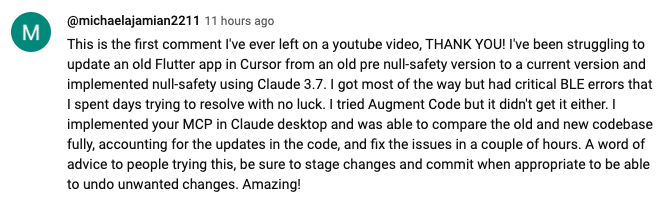 https://www.youtube.com/watch?v=ly3bed99Dy8&lc=UgztdHvDMqTb9jiqnf54AaABAg
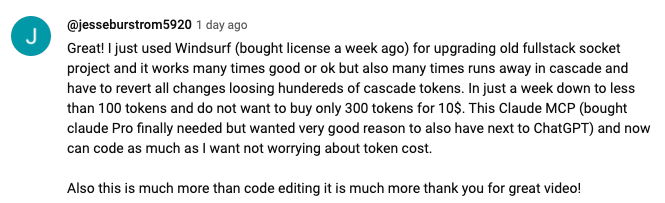 https://www.youtube.com/watch?v=ly3bed99Dy8&lc=UgyQFTmYLJ4VBwIlmql4AaABAg
 https://www.youtube.com/watch?v=ly3bed99Dy8&lc=Ugy4-exy166_Ma7TH-h4AaABAg
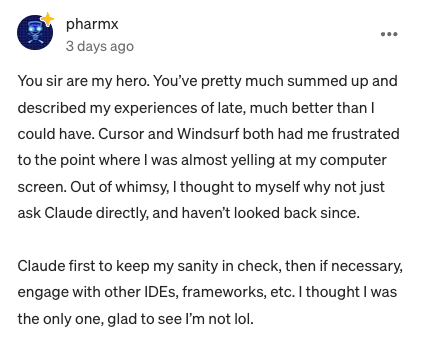 https://medium.com/@pharmx/you-sir-are-my-hero-62cff5836a3e
If you find this project useful, please consider giving it a ⭐ star on GitHub! This helps others discover the project and encourages further development.
We welcome contributions from the community! Whether you've found a bug, have a feature request, or want to contribute code, here's how you can help:
- Found a bug? Open an issue at github.com/wonderwhy-er/DesktopCommanderMCP/issues
- Have a feature idea? Submit a feature request in the issues section
- Want to contribute code? Fork the repository, create a branch, and submit a pull request
- Questions or discussions? Start a discussion in the GitHub Discussions tab
All contributions, big or small, are greatly appreciated!
If you find this tool valuable for your workflow, please consider supporting the project.
Frequently Asked Questions
Here are answers to some common questions. For a more comprehensive FAQ, see our detailed FAQ document.
What is Desktop Commander?
It's an MCP tool that enables Claude Desktop to access your file system and terminal, turning Claude into a versatile assistant for coding, automation, codebase exploration, and more.
How is this different from Cursor/Windsurf?
Unlike IDE-focused tools, Claude Desktop Commander provides a solution-centric approach that works with your entire OS, not just within a coding environment. Claude reads files in full rather than chunking them, can work across multiple projects simultaneously, and executes changes in one go rather than requiring constant review.
Do I need to pay for API credits?
No. This tool works with Claude Desktop's standard Pro subscription ($20/month), not with API calls, so you won't incur additional costs beyond the subscription fee.
Does Desktop Commander automatically update?
Yes, when installed through npx or Smithery, Desktop Commander automatically updates to the latest version when you restart Claude. No manual update process is needed.
What are the most common use cases?
- Exploring and understanding complex codebases
- Generating diagrams and documentation
- Automating tasks across your system
- Working with multiple projects simultaneously
- Making surgical code changes with precise control
I'm having trouble installing or using the tool. Where can I get help?
Join our Discord server for community support, check the GitHub issues for known problems, or review the full FAQ for troubleshooting tips. You can also visit our website FAQ section for a more user-friendly experience. If you encounter a new issue, please consider opening a GitHub issue with details about your problem.
How do I report security vulnerabilities?
Please create a GitHub Issue with detailed information about any security vulnerabilities you discover. See our Security Policy for complete guidelines on responsible disclosure.
Data Collection & Privacy
Desktop Commander collects limited, pseudonymous telemetry to improve the tool. We do not collect file contents, file paths, or command arguments.
Opt-out: Ask Claude to "disable Desktop Commander telemetry" or set "telemetryEnabled": false in your config.
For complete details, see our Privacy Policy.
Verifications

License
MIT
Featured
Keep your Mac awake while Claude Code and 40+ AI agents run. Sleeps when they're idle.
One time payment $9 →Integrate web data into your AI product. One API to scrape website & brand data.
Get API Key Now →Agent, run crypto. Access onchain data & trade routes via 1inch.
Install now →On Capafy, your Skill runs online 24/7 as an agent product, and you get paid every time someone uses it.
Start earning →Categories
Registryactive
Package@wonderwhy-er/desktop-commander
TransportSTDIO
Resources2
Tools verifiedJun 10, 2026
UpdatedJun 5, 2026


